
Your complete guide to using uBuyFirst’s browser-based eBay search and monitoring tool.
New to the web app? Start with the uBuyAssist overview.
1. Overview #
What is Lite Version? #
A browser-based eBay search and monitoring tool with two core modes: Alert and Search. Works on any browser — Mac, Windows, or mobile. Free during soft launch.
Alert Mode vs Search Mode #
Alert Mode is for real-time monitoring. You set up saved searches (keywords), start the alert, and items flow in as they’re posted on eBay. This is for deal hunters where speed matters — seconds can make the difference on hot items. Results stream in continuously while Alert is active.
Search Mode is for on-demand batch searching. Instead of going to eBay.com, run your searches here with saved profiles and advanced filtering. This is for users who need to process searches in batches, repeat the same searches daily, or need more control over filtering than eBay.com offers. You run a search, process the results, then run the next one.
Which should I use?
- Need real-time, continuous monitoring? → Alert
- Need to run searches on-demand, process batches, repeat daily searches? → Search
- Many users use both depending on their workflow
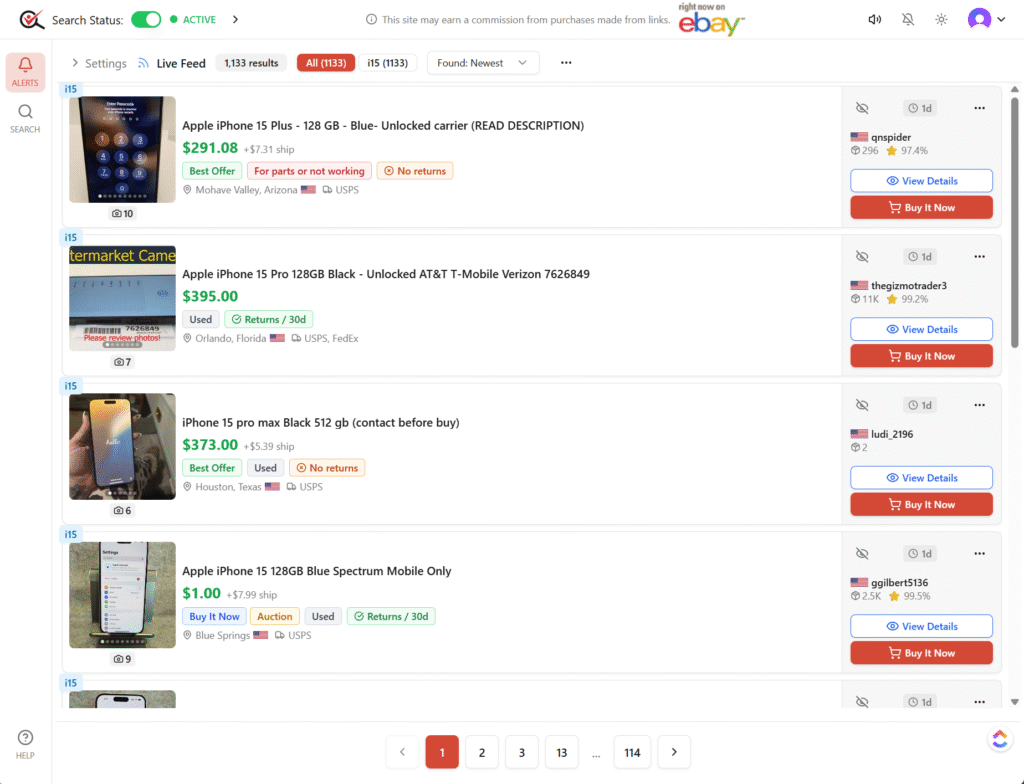
#

Who is it for?
Alert Mode Use Cases: #
- Daily deal hunters monitoring newly listed items
- Speed-focused buying where seconds matter
- Continuous monitoring of specific product categories
- “Drinking from a fire hose” high-volume sourcing
Search Mode Use Cases: #
- Casual eBay searches — Common, everyday searches with saved profiles
- Daily batch processing — Run the same searches each day, eliminate items you’ve already processed
- High-volume sourcing — Heavy batch searching with organized profiles, advanced filtering, blocking noise
- One-off searches — Quick searches for specific items without setting up alerts
- Team workflows — Work as a team, each person with their own account, and share searches and blocked lists (see Multi-User / Team Access)
Key benefits for high-volume users:
- Eliminate items you’ve already made decisions on (critical for daily batches)
- Block sellers, items, and countries that pollute results with noise
- Advanced filtering criteria to cut through 2-3x more listings efficiently
- Organize searches into profiles for repeatable workflows
- Work as a team: share searches and blocked lists with your team members
Lite vs Desktop Comparison #
| Feature | Lite (Web) | Desktop |
|---|---|---|
| Platform | Any browser (Mac, Windows, mobile) | Windows only |
| Price | Free (soft launch) | $50/month |
| Real-time alerts | ✓ | ✓ |
| On-demand batch search | ✓ | ✓ |
| Advanced filters | ✓ | ✓ (more options) |
| Multiple views | Limited | Full customization |
| Multi-user | ✓ Teams (each person signs in with their own account) | Per license |
| Best for | Light-to-medium volume, Mac users, batch workflows | Enterprise/heavy volume, full customization |
2. Getting Started #
Creating an Account #
- Go to app.ubuyfirst.com
- Sign up with your email
- Verify your email address
- Log in and start using
Interface Overview #
- Top bar: Light/Dark mode toggle, Notifications on/off, Sound toggle, Account/Login
- Left navigation: Alert and Search mode icons — click to switch between modes
- Main area: Two-pane layout — settings/options on left, results on right
- Drag the divider to resize panes
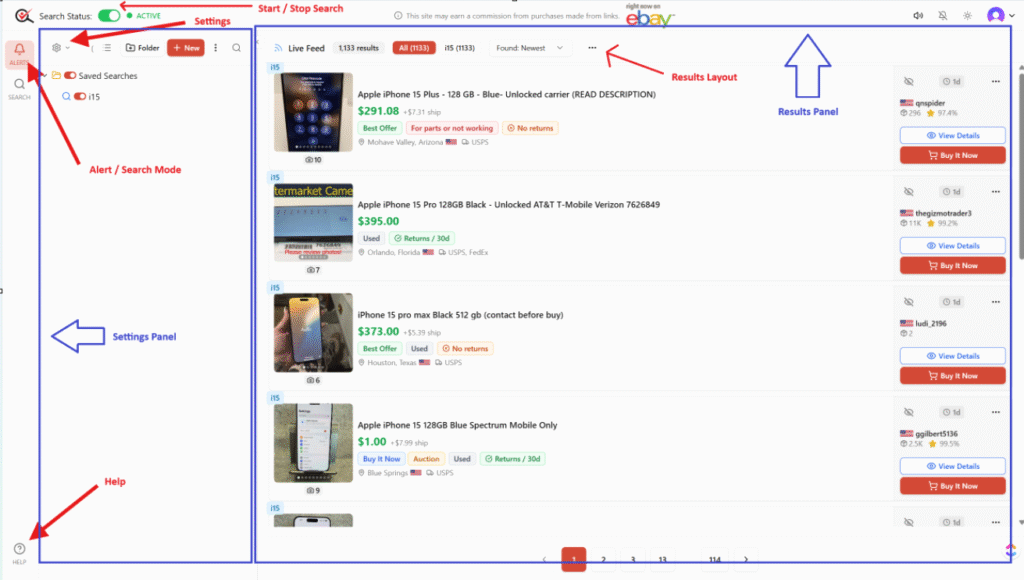
Multi-User / Team Access #
Work with others as a team. Each person signs in with their own uBuyFirst account.
- Open your account menu (your initial, top right) and choose Team.
- Click Create Team and give it a name. You can change the name later. You are the team’s owner.
- Click Add Team Member, search for the person by email or name, and pick their role: Member or Admin.
- They see an invite at the top of their dashboard. They join only when they click Accept. Until then the invite shows as Pending, and you can cancel it.
Roles: #
- Owner — everything an admin can do, plus Transfer Ownership and Delete Team.
- Admin — adds and removes members, renames the team, assigns search folders to members, and sees and manages the team’s searches and filters. The team’s blocked sellers, items and countries replace their own.
- Member — the team manages their blocked sellers, items and countries, and their new saved searches.
Anyone can leave a team with Leave Team on the Team page.
3. Alert Mode — Real-Time Monitoring #
Quick Start: Your First Alert Search #
Here’s how to get up and running with your first real-time alert:
Step 1: Create a Saved Search
#

- Click Settings (gear icon) on the left panel to expand the Settings and Options window
- It should default to Saved Searches — if not, click the gear icon to see the Alert module settings panels
- The settings load on the left side while your results panel stays visible on the right
- Click New to create a new saved search
- Fill in your search details (see “Creating a Saved Search” below)
- Click Save
Step 2: Start the Alert #
- Return to the main view (collapse settings if needed)
- Toggle Alert to Active (green) in the upper left
- Make sure you see the green indicator showing alerts are running
Step 3: View Results #
- Results stream in automatically as items are posted on eBay
- Sound notification plays for new items (if enabled)
- Results panel is always present on the right side
- Click any listing to see more details
Creating a Saved Search (Keyword) #
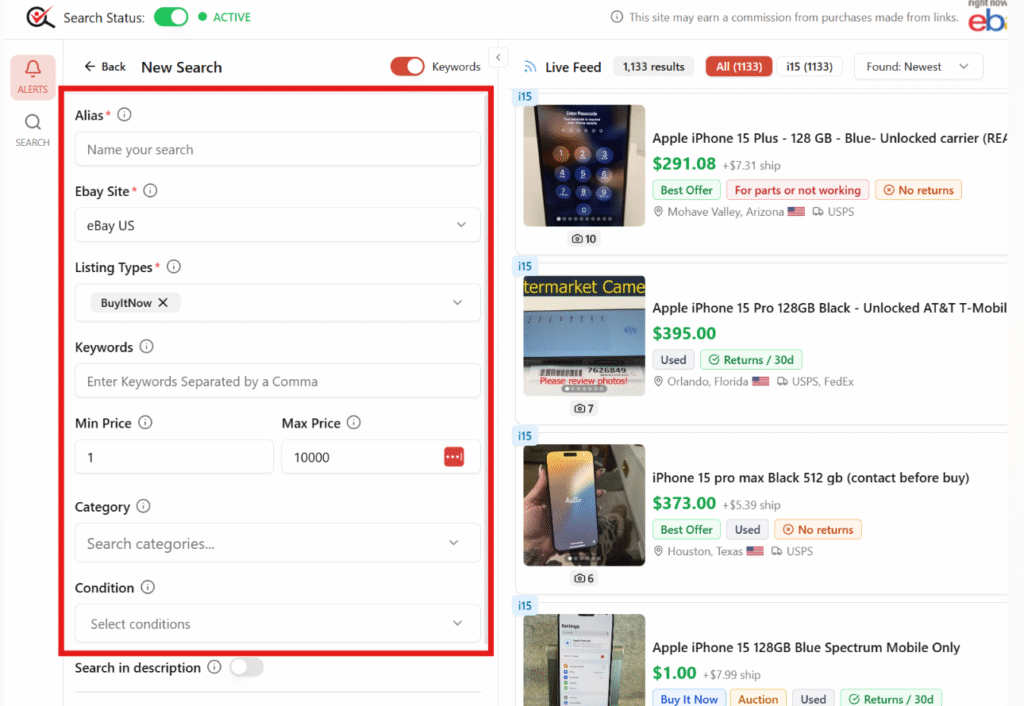
When creating a saved search, you’ll see these fields:
Basic Information: #
- Alias — Short internal name to quickly identify this search (helpful when managing multiple searches)
- eBay Site — Which eBay site to search (ebay.com, ebay.co.uk, etc.)
- Keywords — What you’re searching for (the main search terms)
Filters: #
- Listing Type — Auction, Buy It Now, or both
- Min Price / Max Price — Price range filter
- Category — eBay category to narrow results
- Condition — New, Used, Refurbished, etc.
- Search in Description — Include item descriptions in keyword matching
Location Settings: #
- Zip Code — Your location (for shipping cost calculations)
- Item Located In — Where items should be located (e.g., United States)
- Ships To — Must ship to your location
Seller Filters: #
- Block Countries — Exclude sellers from specific countries
- Allow Countries — Only include sellers from specific countries
Starting Your Alert & Viewing Results
#

Once you have saved searches created:
- Toggle Alert to Active (green arrow) in upper left
- Results begin streaming in real-time
- The Results Panel is always present and open on the right side
- New items appear as they’re listed on eBay
- Sound notification plays for new items (if enabled in top bar)
Sorting Results:
#

- Posted Newest / Oldest
- Price Low to High / High to Low
- Found Newest / Oldest
The Results Panel #
The results panel shows your incoming items. Click the three dots above the results grid to change how results display:
- Grid View — Card layout with images
- List View — Compact list format
- Table View — Spreadsheet-style columns
- Items per page — Adjust how many items display

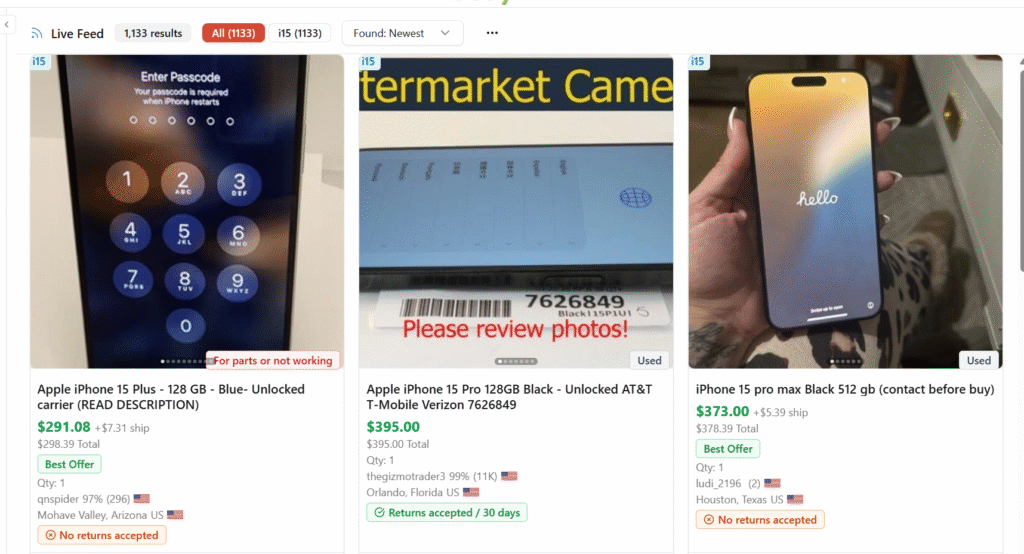
#
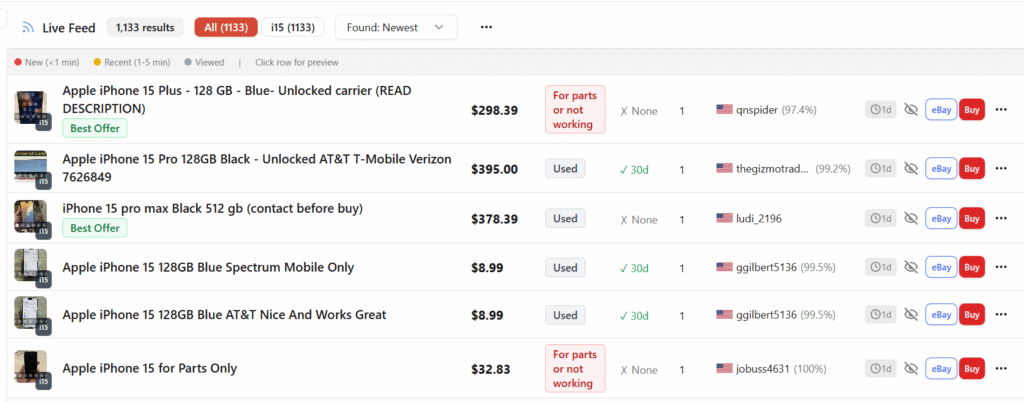
Working with Results:
- Click a listing → Opens the Item Preview Window
- Mark as Seen — Click the rectangle on the right side of an item
- Temporarily Hide — Click X to remove from current view (not blocked, just hidden)
- Block Item — Three dots → Block Item (permanent, won’t appear again)
Item Preview Window
#
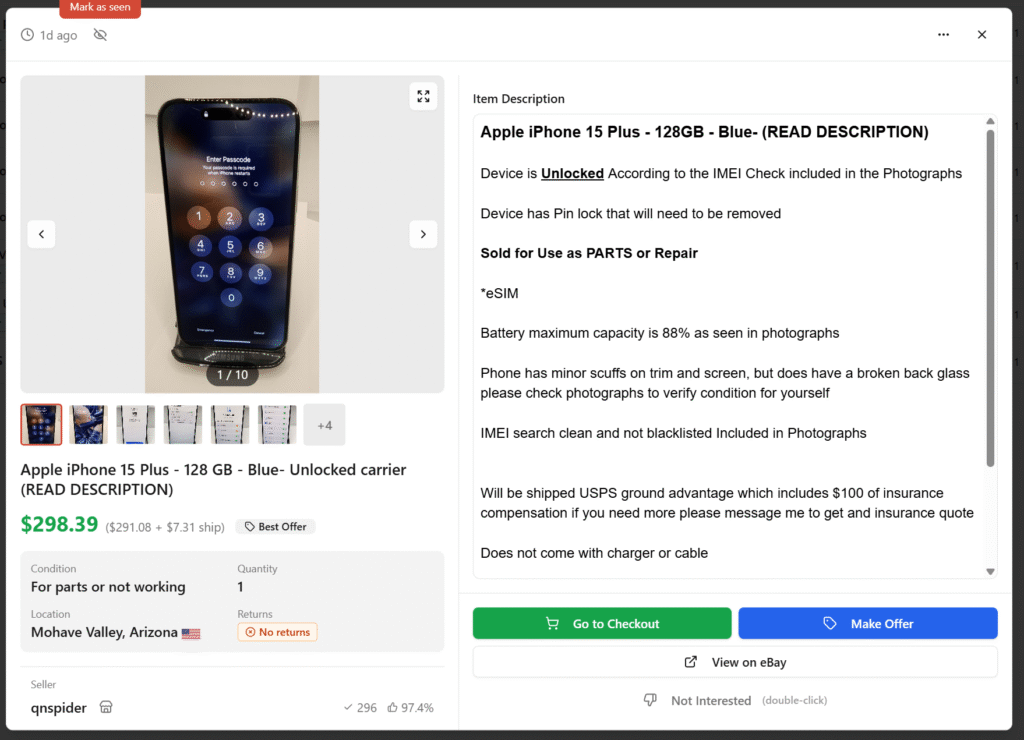
When you click on a listing, the Item Preview Window opens with full details:
What you see: #
- Pictures — Click to enlarge
- All listing details — Price, shipping, condition, seller info, item specifics
- Item description — Full description text from the listing
- Seller information — Feedback score, location, other seller details
Actions available: #
- View on eBay — Open the item page on eBay
- Go to Checkout — Jump directly to purchase
- Make Offer — If available on the listing
- Mark as Viewed / Not Interested — Track your decisions
- Close — Return to results panel
This gives you everything you need to qualify or disqualify an item without leaving the app.
Settings & Options Overview #
The Settings panel contains everything for configuring your Alert experience:
- Saved Searches — Create and manage your keyword searches
- Item Filters — Rules to automatically tag or hide items
- Blocked — Manage blocked sellers, items, and countries
- Global Profile — Default settings applied to all new searches
Click Settings (gear icon) to expand. Click the gear icon again to access the different options panels.
Saved Searches #
Organize multiple saved searches to monitor different products or categories simultaneously. Each search runs independently when Alert is active.
- Create unlimited saved searches
- Organize in folders for easy management
- Each search has its own keywords, filters, and settings
- Override global profile settings at the individual search level
Item Filters (Tags & Rules) #
Automatically process incoming items based on rules you define. Like conditional formatting — highlight items you want, hide the noise.
What filters can do: #
- Add a Tag — Visual label appears on the item in results (customizable color and name)
- Hide — Automatically remove items matching the rule from view
Creating a Filter:
#
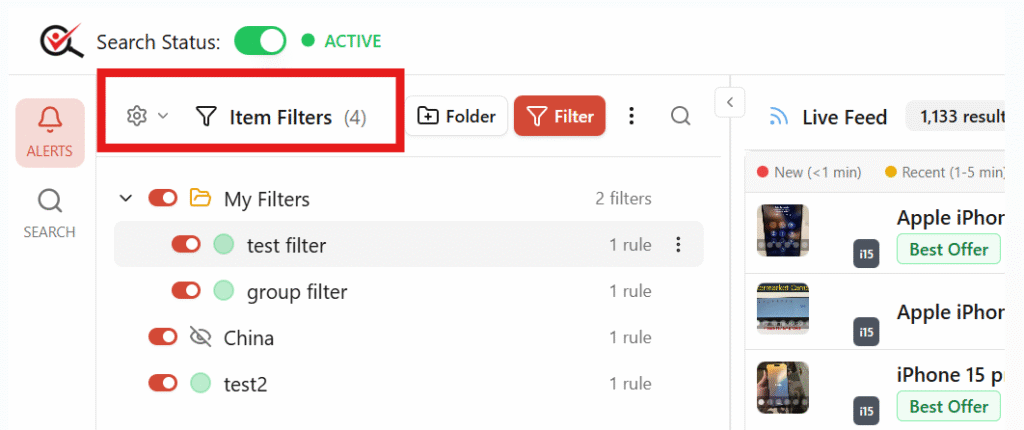
- Go to Settings → Item Filters
- Organize filters in folders
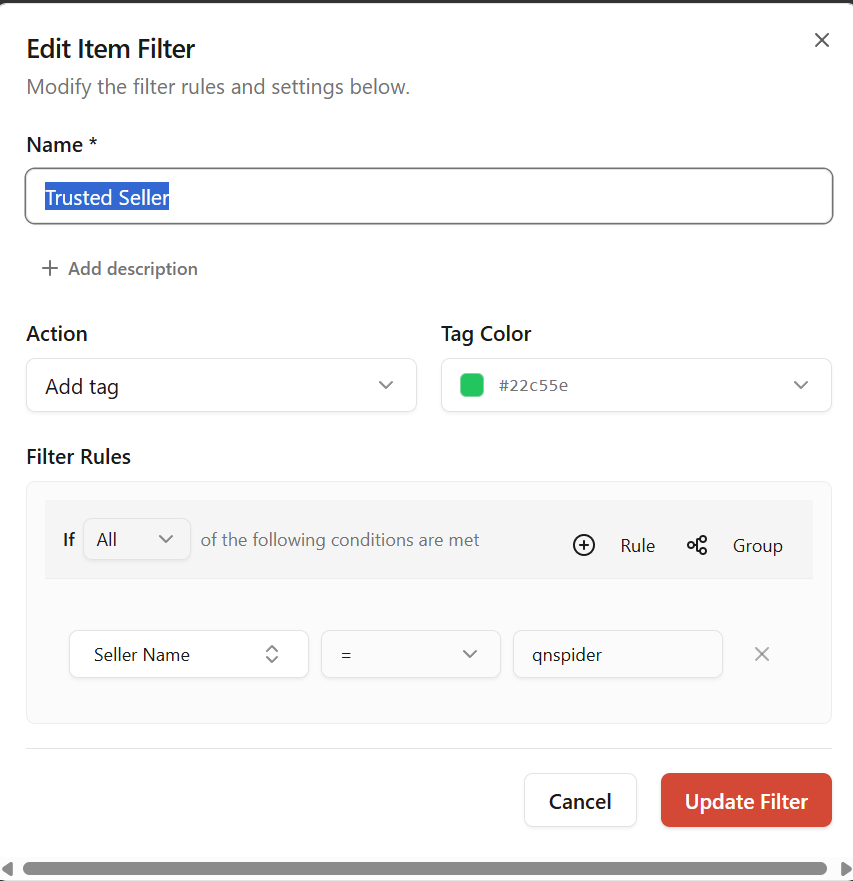
- Click New to create a filter:
- Name — What to call this filter
- Action — Add Tag or Hide
- Color — Tag color for visibility
- Filter Type — Rule Builder or Country Filter
Rule Builder: #
- Set match condition: If ALL / ANY / NONE of conditions are met
- Add conditions: Pick any listing field → Contains / Does not contain / Starts with / Ends with → Value
- Group conditions with AND/OR logic
Example: Tag items where title contains “sealed” AND price < $50 with a green “HOT DEAL” tag
Blocked Items (Sellers, Items, Countries) #
Remove noise by blocking sellers, items, or countries you never want to see.
Why block? #
- Eliminate repeat sellers who don’t fit your needs
- Block items you’ve already evaluated and rejected
- Exclude entire countries with problematic shipping or seller quality
- Can reduce results clutter by 2-3x in some categories
Blocking from Results: #
- Click three dots on any listing → Block Seller or Block Item
- Blocked items won’t appear in future results
Managing Blocked Lists:
#
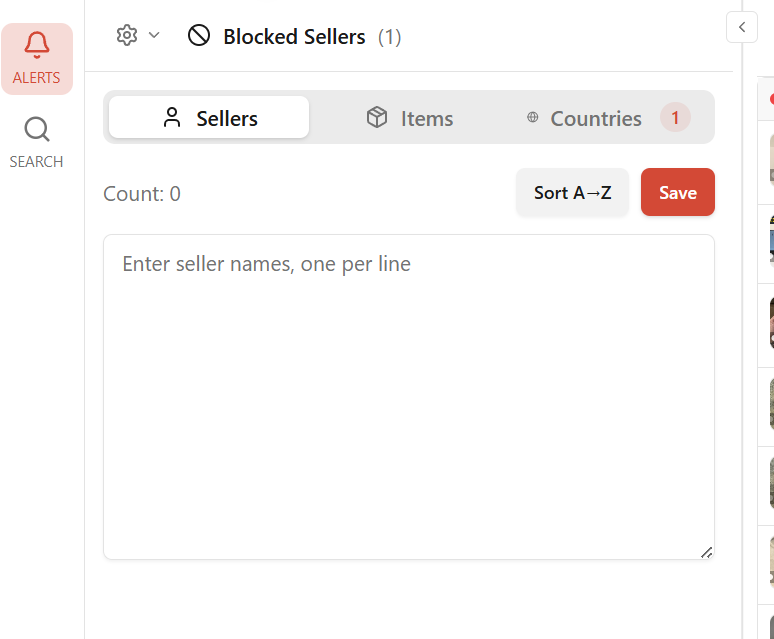
- Settings → Blocked
- View and edit blocked sellers, items, countries
- Copy/paste lists or add individually
- Import/Export supported
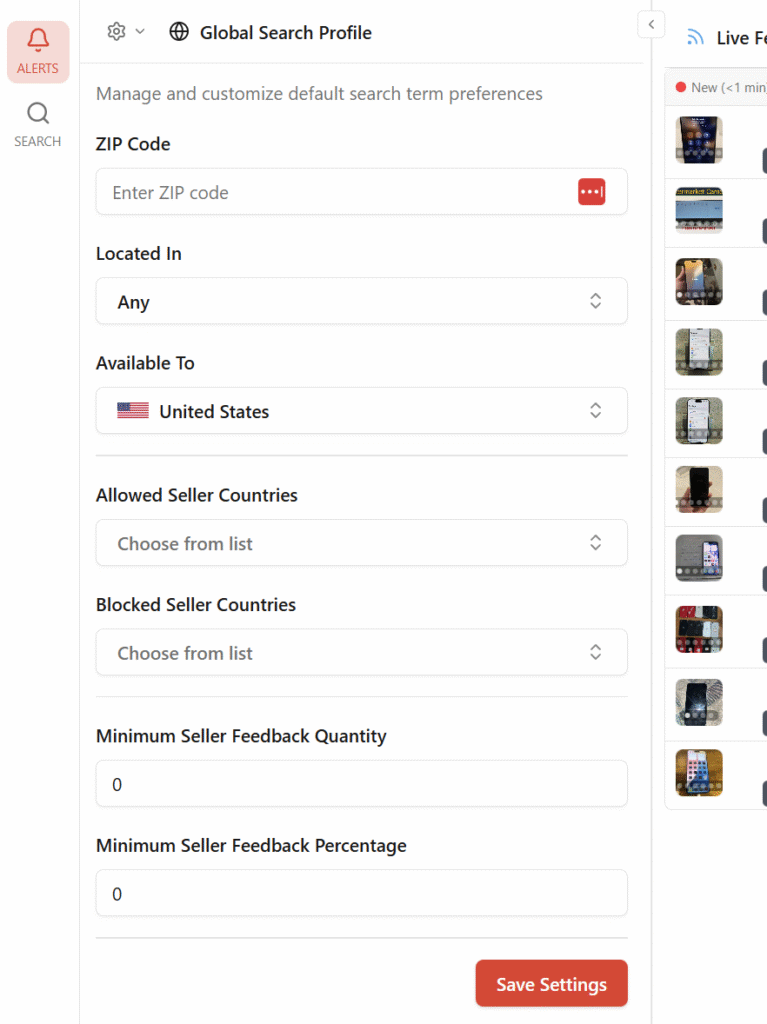
Global Profile Settings #
Settings that stay consistent across all your searches by default.
- Set once in Settings → Global Profile
- New saved searches inherit these settings automatically
- Can override at individual search level when needed
- Includes: default location, default seller filters, common exclusions
Import / Export #
- Export your saved searches, filters, blocked lists
- Import from backup or share configurations between accounts
- Useful for team setups or backing up your configuration
- Settings → Import/Export

4. Search Mode — On-Demand Batch Search
#

What is Search Mode? #
Search Mode is your eBay.com replacement for on-demand searches. Instead of going to eBay, run searches here with saved profiles, advanced filtering, and better organization.
You run a search, process the results, then move to the next search. Results don’t stream in continuously like Alert — you’re in control of when searches run.
Use Cases: From Casual to High-Volume #
Casual / Everyday Use: #
- Run common eBay searches with saved settings
- Quick one-off searches for specific items
- Any search on eBay for active items
Daily Batch Processing: #
- Run the same searches every day
- Eliminate items you’ve already processed — don’t waste time re-evaluating the same listings
- Critical for users doing daily buying routines
High-Volume / Professional Use: #
- Heavy batch searching with many organized profiles
- Advanced filtering criteria to cut through noise
- Block countries, items, and sellers that pollute results
- Can reduce clutter by 2-3x when properly configured
- Apply the same rules easily across different search types
- Team members sharing searches and blocked lists, each with their own account
Search Interface Overview #
- Search bar at top — Type keywords like you would on eBay.com
- Profiles dropdown — Apply saved filter profiles
- Filter bar — Quick filters (Price, Buying Format, Condition, Item Location, Profile)
- Results area — Same view options as Alert (Grid/List/Table)
Running a Search #
- Type keywords in search bar (or select a profile first)
- Apply filters as needed
- Click Search
- Results load — use same view options as Alert mode
- Click listings to see Item Preview Window
- Clear button resets the search
Search Profiles #
Save your common search configurations so you don’t re-enter filters every time.
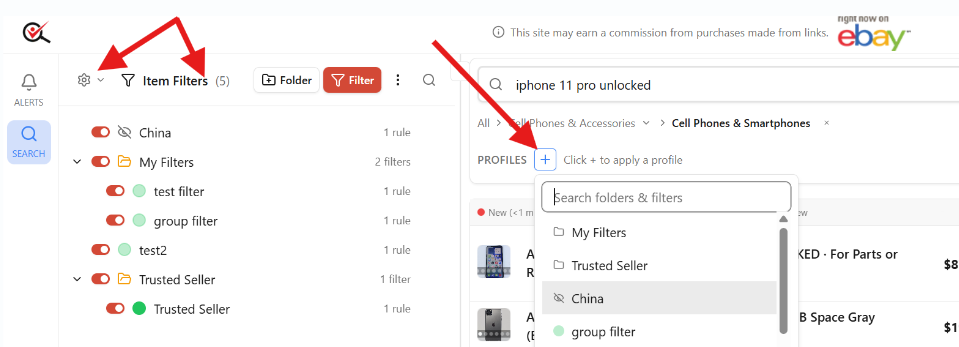
How profiles work: #
- Type a search and apply filters
- Save as a profile with a name
- Organize profiles in folders
- Next time: select the profile, type only the variable part
Example workflow:
- Profile: “iPhone – US Only – Under 2000 feedback”
- Pre-configured: Category (Cell Phones), Location (US), Seller feedback filter, blocked countries
- To search: Just type “iPhone 14 Pro Max 256GB” and run
- All your standard filters apply automatically
Data Modes #
Control how much data is fetched per item (affects speed):
- Basic — Faster, essential details (recommended for most)
- Full Fast — More detail, still optimized for speed
- Full — Maximum detail, slower
Located at top of Search page. Use Basic unless you need every data point and speed is critical.
Filters Bar #
Quick access to common filters without opening full settings:
- Price range
- Buying format (Auction, Buy It Now, etc.)
- Condition
- Item location
- Profile selector
Advanced mode: Click Filters tab for full filter options
Eliminating Already-Processed Items #
Critical for daily batch workflows: don’t waste time re-evaluating items you’ve already made decisions on.
Methods: #
- Block items you’ve rejected — they won’t appear again
- Mark as seen — track what you’ve reviewed
- Block sellers that consistently don’t fit your needs
- Use filters to screen out categories of items you never want
When you’re processing hundreds of items daily, eliminating already-seen items is the difference between efficient sourcing and drowning in repeat listings.
5. Common Features #
Light Mode / Dark Mode #
Toggle in top bar. Dark mode is default.
Notifications #
- Toggle sound notifications on/off (bell icon in top bar)
- Sound plays when new items arrive in Alert mode
Account Settings #
- Access from top right (person icon)
- Manage login, email, preferences
6. FAQ #
General #
How much does it cost? Free during soft launch. We’re focused on feedback and making it useful.
What’s the difference between Alert and Search? Alert is real-time streaming — items flow in as they’re posted. Search is on-demand — you run searches and process results in batches. See the overview section for when to use each.
Can my team work together? Yes. Create a team and add people to it. Each person signs in with their own account, and the team shares searches and blocked lists. See Multi-User / Team Access above.
Can I use both Alert and Search? Yes. Switch between modes using the left navigation. Many users use both depending on their workflow.
Alert Mode #
How fast are results? Near real-time. Items appear within seconds of being posted on eBay.
How many saved searches can I have? No hard limit during soft launch. Create as many as you need.
Search Mode #
What are profiles for? Save search configurations so you don’t re-enter filters every time. Just type the variable part and go.
How is this different from searching on eBay.com? Saved profiles, advanced filtering, blocked sellers/items/countries, item preview without leaving the app, and the ability to eliminate already-processed items. Everything you wish eBay.com had.
Can I use my Alert saved searches in Search mode? Yes. Your saved searches work across both modes.
Technical #
What browsers work? Any modern browser — Chrome, Firefox, Safari, Edge. Works on Mac, Windows, tablets.
Do I need to install anything? No. It’s browser-based. Just log in and start.
Is my data saved? Yes. Your saved searches, filters, blocked lists, and settings are stored on your account. Log in from any device and pick up where you left off.
7. What’s Coming Next #
We’re pushing updates frequently. Here’s what’s on the roadmap:
- Additional view customization options
- Messaging tools — contact sellers with filters and quick actions
- Watchlist improvements
- AI utilities — listing analysis, confidence scoring (from our Desktop product)
- Enhanced filtering criteria
- Performance optimizations
Have a feature request? Use the feedback option in the app (Help → Feedback) or email us at su*****@*******st.com.
uBuyFirst — Custom eBay search and acquisition tools for business buyers and resellers. Official eBay Partner Network member.


