
Send listing matches from your saved searches to Email, Slack, Telegram, Discord, and WhatsApp — so you stay on top of new inventory whether or not you’re at the app.
For an overview of what Notify does, see eBay listing notifications with Notify.

How it works #
Notifications run independently of the in-app Alert view. You don’t need alerts running in your dashboard for notifications to fire. As long as a channel is connected and active, matches from your saved searches will be delivered there based on the settings you choose.
Good to know
Notifications and Alerts are separate. Alerts is for when you’re actively at the app on screen. Notifications is for when you’re not — on your phone, in a team channel, or away from your desk.
Supported channels #
Five channels, each configured separately. You can run different keywords, schedules, templates, frequencies, and filters on each one — so the same saved search can deliver one way to Slack and another way to WhatsApp.

Connecting a channel #
From the Notifications page:
- Click the channel you want to set up.
- Follow the connection prompts for that channel — entering your email address, authorizing Slack / Discord / Telegram, etc.
- Confirm the connection: the channel receives a test message with a 6-digit code, and the card shows Awaiting Confirmation. Type the code in the Code box and click Confirm. The code expires in 30 minutes; Send a new code gets another one. A channel that was never confirmed does not deliver notifications.
- Once connected, the card will show Connected with a Configure option.
The toggle on each channel card lets you pause or re-activate notifications without disconnecting.
Configuration tabs #
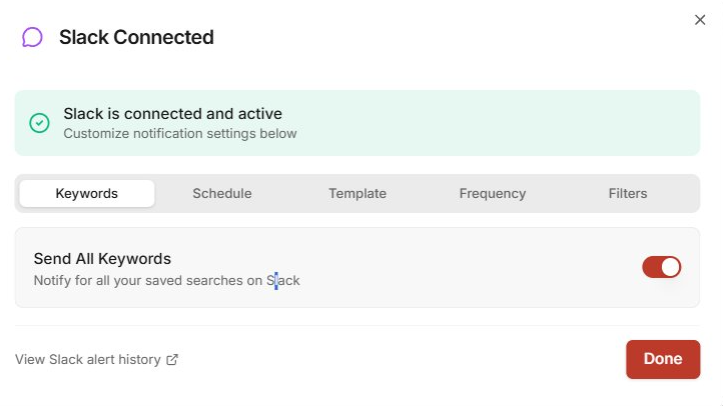
Each connected channel has the same five tabs. Configure them in any order; settings save per-tab.
| Tab | What it controls |
|---|---|
| Keywords | Which saved searches feed this channel |
| Schedule | Days and times when the channel is allowed to deliver. Times follow the time zone in your Account Settings; the tab shows which zone is in use, with a Change link to it. |
| Template | What each notification looks like — fields and images |
| Frequency | How often results are batched and sent |
| Filters | Filter profiles that narrow what qualifies |
Keywords #
Choose which saved searches feed this channel.
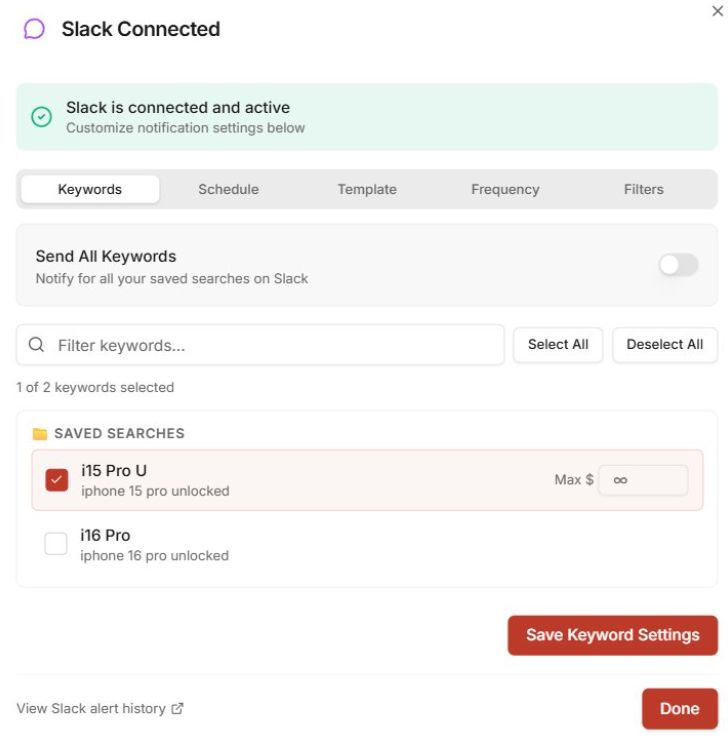
- Send All Keywords — toggle on to include every saved search, including ones you create later.
- Specific keywords — toggle Send All Keywords off, then check the searches you want to include. Use the filter box, Select All, or Deselect All to manage long lists.
- Click Save Keyword Settings when done.
Schedule #
Set a delivery window so notifications only arrive during the days and times you want. Common patterns:
- Business hours only to Slack
- Evenings and weekends only to WhatsApp
- Always-on for Email
Template #
Controls what each notification looks like.
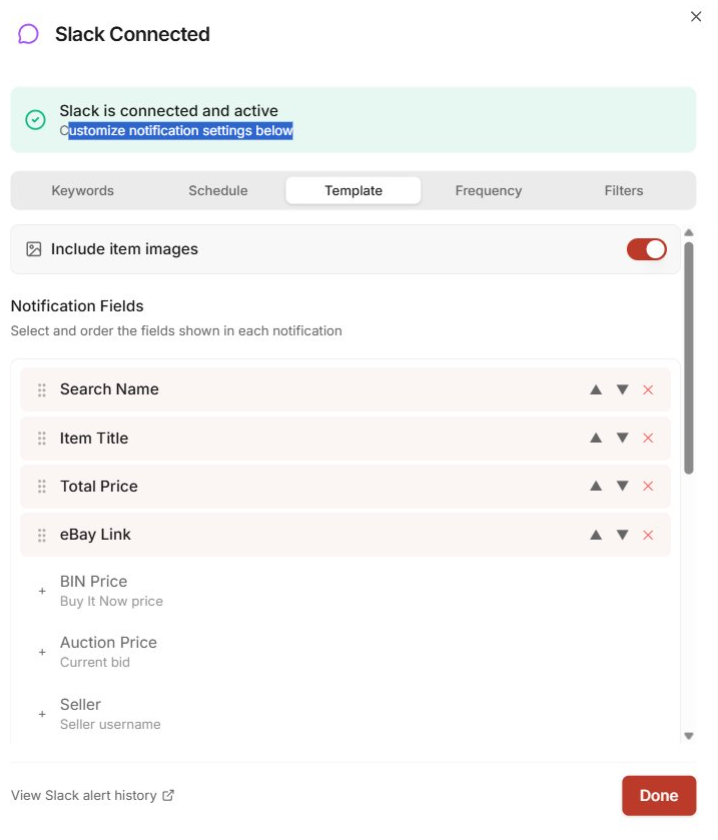
- Include item images — toggle on or off per channel.
- Notification Fields — pick which fields appear and in what order. Available fields include Search Name, Item Title, Total Price, eBay Link, BIN Price, Auction Price, Seller, and more.
To customize:
- Use the up/down arrows to reorder active fields
- Click the × to remove a field from the active list
- Click the + on an inactive field to add it back in
Frequency #
How often results are batched and delivered. Everything found within the selected interval is grouped into a single send.

For time-sensitive buys, use 1 minute. For ambient awareness of what’s listing in a category, once a day keeps the noise down.
Filters #
Filters narrow what gets delivered to this channel. They reuse the filter profiles you’ve already created in Alerts or Search — there’s no separate filter builder here.
A common workflow: create a filter specifically for a notification channel, then tag it or organize it in a folder so you can easily identify which filters drive which channels.
Alert history #
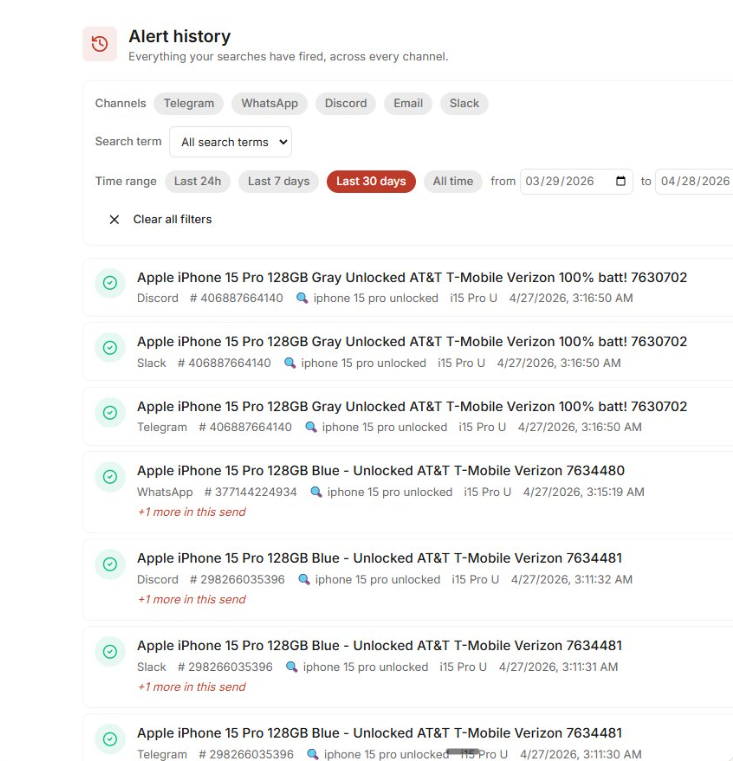
The Alert history button (top-right of the Notifications page) shows every notification your searches have fired across every channel. Filter by:
- Channel — Telegram, WhatsApp, Discord, Email, Slack
- Search term — narrow to a specific saved search
- Time range — Last 24h, Last 7 days, Last 30 days, All time, or a custom date range
Inactivity #
A connected channel is flagged as inactive after 7 days without engagement (no clicks on delivered notifications). You can reactivate at any time from the channel card.
FAQ #
Do I need to keep the app open or have alerts running for notifications to fire?
No. Notifications run on their own — independently of the Alert view and independently of whether the app is open. Once a channel is connected and active, matches will be delivered based on the settings you’ve configured.
Can I send the same saved search to multiple channels?
Yes. The same saved search can feed any combination of channels, each with completely different settings. For example: route an “iPhone 15 Pro” keyword to Slack at 5-minute frequency for the team to see, and to WhatsApp at 1-minute frequency with a strict filter for urgent personal alerts.
What’s the difference between Schedule and Frequency?
Schedule controls when the channel is allowed to deliver — days of the week and a start/end time window. Frequency controls how often matches are batched and sent within that schedule.
Example: a Slack channel might have a Schedule of Mon–Fri, 9am–6pm, and a Frequency of 5 minutes. Inside that window, matches are batched every 5 minutes. Outside that window, nothing fires.
I configured everything but I’m not getting notifications. What should I check?
Walk through these in order:
- The channel toggle on the card is on.
- Your Schedule isn’t currently outside the active window for the day.
- Your Filters aren’t excluding everything — try temporarily removing them.
- You have at least one saved search that’s actively returning results.
- The channel connection is still valid (no expired credentials, broken webhook, or disconnected bot).
The Alert Mode toggle does not affect notifications — they’re separate systems.
Can I have different settings on each channel?
Yes — that’s the point. Every channel has its own Keywords, Schedule, Template, Frequency, and Filters. A common setup: Email gets all keywords on a daily digest; Slack gets a few high-priority keywords during business hours; WhatsApp gets one keyword at 1-minute frequency with a strict filter.
I’m getting too many notifications at once. How do I tone it down?
Two levers:
- Lengthen the Frequency — move from 5 minutes to 15 minutes, or from 15 minutes to 1 hour. Matches get batched into fewer, larger sends.
- Tighten the Filters — add or strengthen filter conditions so fewer items qualify in the first place.
If I pause a channel for a week, will I get a flood of old items when I turn it back on?
No. Notifications pick up from “now” when you re-enable a channel. You won’t be back-filled with items missed during the pause — only new matches forward.
How do I delete or fully reset a channel?
Click the trash icon on the channel card. This removes the connection and all configured settings for that channel. To set it up again, click the channel and reconnect from scratch.
Where can I see what was actually sent?
Click Alert history at the top-right of the Notifications page. You’ll see every notification that has fired across every channel, with filters for channel, search term, and time range. Each entry links straight to the eBay listing.Last updated: April 28, 2026 · uBuyAssist Web App


