
Ask about your eBay orders in plain words, right inside Post-Sale (uBuyFirst Web App)
The Post-Sale AI assistant is a chat built into Post-Sale Management. You ask about your orders in plain words, and it answers from your orders, notes and seller messages. It can also draft a message to a seller, and compare the photos of an item you received with the listing’s pictures.
The assistant changes an order only when you press Confirm. It shows a card with the exact order and the exact change, and nothing happens until you press Confirm on that card. It doesn’t send anything to sellers, apart from the Item received message you choose on that card. It can draft a message to a seller for you to send yourself, and you leave feedback yourself.
It answers from the orders Post-Sale has synced, so connect your eBay account first: see Post-Sale Management: eBay Accounts & Syncing. With no eBay account connected, it says so at the start of its answer when it finds no orders. If your accounts are connected but none has synced yet, it says why, for example that syncing hasn’t been started or that the first sync is still running. There is nothing else to set up. You don’t need a connector or an API key.
Table of Contents #
- Open It
- What You Can Ask
- Open an Answer in Post-Sale
- Make a Change
- What It Can’t Do
- Your Chats
- Limits
- FAQ
Open It #
Press the round red button at the bottom right of any Post-Sale page: Home, Orders, an order, Receive or Settings.
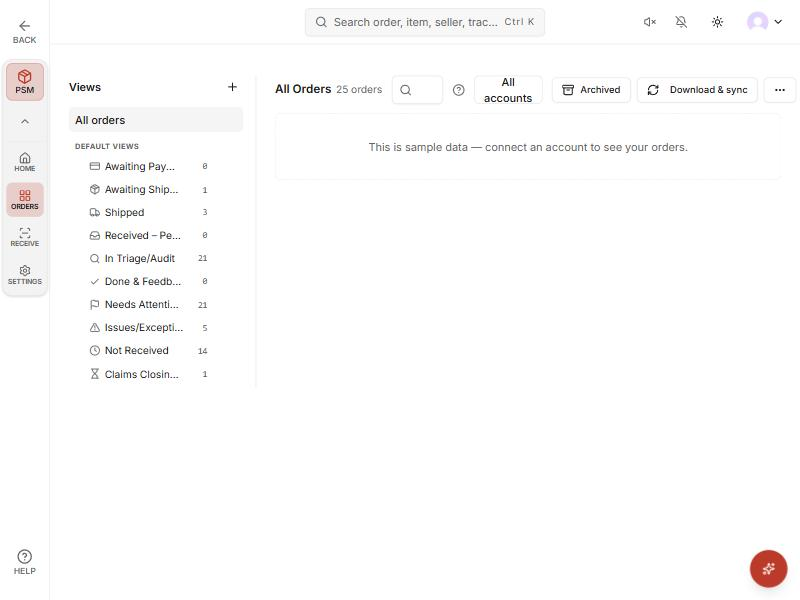
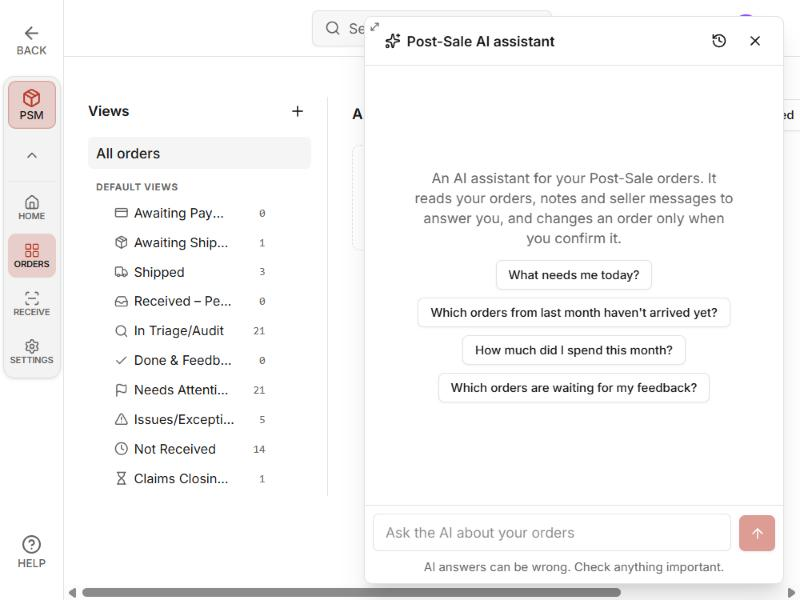
The window opens with four starter questions. Press one, or type your own question and press Enter.
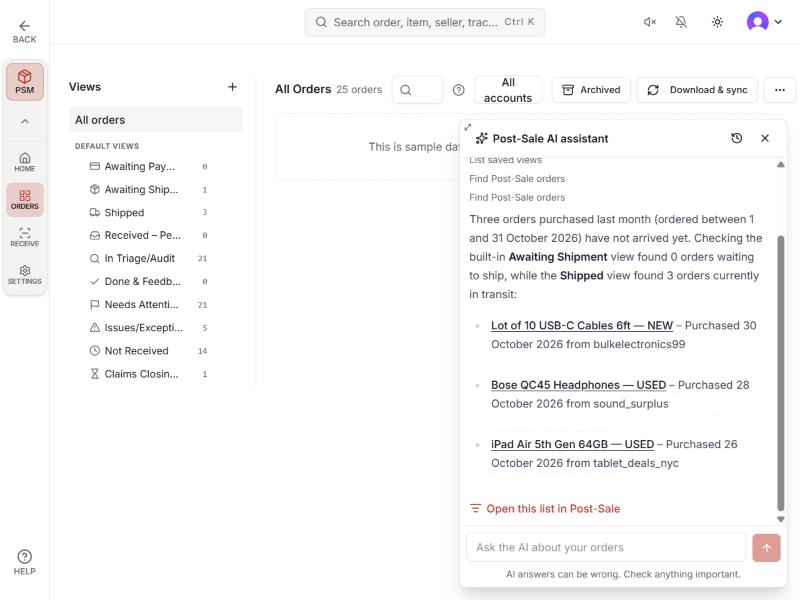
An answer can take half a minute or more. The small lines above it show what the assistant is reading, such as “Find Post-Sale orders”. While an answer runs and nothing else on the screen shows it, the window shows “Working on your answer…”. Wait for one answer to finish before you send the next question.
Each line shows Running while it works, a check mark when it’s done, Error when it didn’t work, and Stopped after you press Stop. Words the assistant writes before it reads something more show as a small grey note. A finished answer has a Copy button that copies its text, without the grey notes.
Closing the window keeps your chat, so you can open it again and carry on.
To make the window bigger, drag its top-left corner. It remembers the size.
In a phone’s browser the window fills the screen.
What You Can Ask #
Some questions that work:
- “What needs me today?”
- “Which orders from last month haven’t arrived yet?”
- “How much did I spend this month?”
- “Which orders are waiting for my feedback?”
- “Which of my orders are at risk of not arriving?”
- “Which sellers shipped late for me this year?”
- “What did the seller say in the messages on my camera order?”
- “Is the listing on my latest order still live, and how many are left?”
- “Is the claim window still open on my camera order?”
- “My headphones order hasn’t arrived. Should I open a case?”
- “Is this late?” (asked on an order’s page)
- “Does what I got match the listing?”
What needs me today? lists the orders that need something from you, such as a claim closing soon, a not-received case waiting on your reply, a parcel past its delivery estimate, or feedback running out. It groups them by deadline: overdue, due today, due in the next 7 days, and no deadline, which holds item-not-received cases waiting on your reply. A claim shows once it is within 5 days of closing, as in the Claims Closing Soon view. Each order shows once, under its most pressing action, and archived orders are left out. Each group lists the soonest 25 and says how many there are in all. It also counts delivered orders you haven’t checked in, with a link to the Not Received view. Return windows closing aren’t part of it. Today is counted in UTC. When it finds nothing, it names the checks it ran, so that isn’t a guarantee that nothing else needs you.
The assistant can add up what you spent by seller, month, week or account.
It can report how a seller did: orders shipped late, orders past their delivery estimate, not-received cases, returns, refunds and cancellations. An order past its estimate may still arrive. When there are too few orders to judge a seller, it says so.
It can check whether an order’s eBay listing is still live and how many are left. It asks eBay each time. For a listing with variations the number left is unknown, and it can read as live even when every variation is sold out. If eBay doesn’t find the listing, the assistant says it may have ended.
Ask whether to open a case on an order, or say it hasn’t arrived or came broken, and the assistant answers in three short parts: what happened, where the order stands against eBay’s windows, and a suggestion when one fits.
What happened is a timeline from the order’s own dates and your messages with the seller. It can’t read the carrier’s scans, so for where the parcel is now it gives the shipping status, and the tracking link when the order has one.
Where the order stands uses only the dates the order shows. The claim window dates are estimates, so it says “about”. A return window counts only where the listing allows that return, and return dates start only once eBay shows the item delivered. A date the order doesn’t have is said as not known.
It uses the first of these that fits. If eBay already has a not-received case or a return on the order, it says where that stands, including whether eBay is waiting on your reply, the date the seller must answer a return by, or that the seller missed it, and for a closed case the refund the order shows. If the item hasn’t arrived and eBay’s estimated delivery day is still ahead, it suggests waiting until that day. If the item hasn’t arrived and the order is at risk of not arriving, it says you can report it on eBay now, and about when the claim window closes. If the item arrived broken, not as described or unwanted, the listing allows that return and its window hasn’t closed, it says you can start the return on eBay now, and when that window closes or that this isn’t known. If the window has closed, it says so, with the date. Otherwise it says what the order shows and suggests nothing.
It never promises what eBay or the seller will decide. If the order shows a delivery and you haven’t said whether the item arrived, it asks before suggesting a claim or a return. If the listing’s return terms aren’t known, it doesn’t suggest a return. It suggests a claim or a return only when it has the eBay link for it.
When it suggests a claim or a return, it links to your eBay Purchase History, where you pick this order. It doesn’t open the claim or the return for you.
For the timeline it reads up to the newest 30 messages with the seller, in up to 3 pages. Each page uses one of your 60 eBay reads an hour and one of the chat’s 30 lookups, so a case question can use several lookups. When older messages weren’t read, it says so and offers to read them.
Archived orders are left out unless you ask about them or name one order. Counts and spend totals say so in the answer.
When a list is long, the assistant says there are more and offers to go on.
Dates are counted in UTC, so an order placed close to midnight can land on the day before or after yours.
If one of your eBay accounts needs reconnecting, the assistant can warn you that its orders aren’t up to date.
On an order’s page, a question about “this order”, such as “is this late?”, is answered about the order that’s open, without asking which one. A question that names another order, or covers all your orders, such as “how much did I spend this month?”, is answered as asked.
Ask whether what you got matches the listing, and the assistant compares the newest 4 receiving photos on the order with up to 4 of the listing’s pictures, or with the order’s saved main picture when eBay’s pictures can’t be read. It says what looks different, in careful words, and what photos can’t show, such as whether the item works. When a difference looks real and a return fits the order, it ends with the return suggestion and its link. It changes nothing on the order or on eBay.
If the order has no receiving photos, the assistant asks you to add some on the order’s page with Attach photo, and the line for that check shows Error. Add photos, then ask again. A photo check uses one of the chat’s 30 lookups, and reading the listing’s pictures uses one of your 60 eBay reads an hour.
Open an Answer in Post-Sale #
Order titles in an answer are links. On a computer the order opens behind the window, and the chat stays open. On a phone the window closes so you can see the order.
Some links, such as an order’s eBay page or its tracking, open in a new tab. Any other outside address, including one in a seller’s message, shows as plain text and doesn’t open.
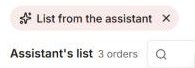
When an answer read a list of orders, “Open this list in Post-Sale” shows below it. It opens the orders page on those orders, with a “List from the assistant” chip at the top. Press the X on the chip to clear the list. Not every answer has this link.
Make a Change #
Ask the assistant to change an order, and it shows a card with the order and the change. Nothing happens until you press Confirm. Cancel changes nothing.
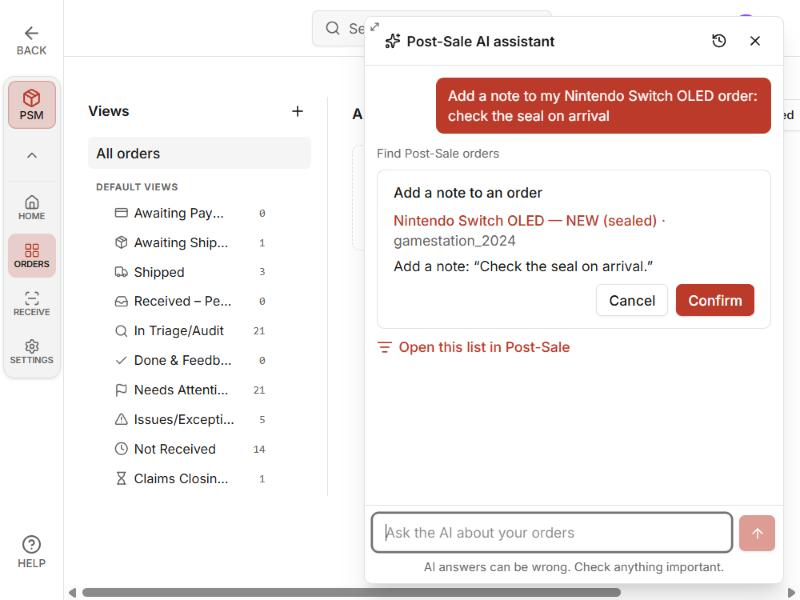
It can mark an order received, set one status, add a note, add or remove tags from the tags you already have, archive or restore an order, and set a custom field. Each card is for one order.
Statuses that come from eBay, such as eBay order, Payment and Shipping, can’t be set here. A Positive, Neutral or Negative Feedback status isn’t set while the order can still get feedback; the assistant drafts the feedback instead.
Marking received here is the plain mark, with no inspection. To record an issue, use the order page.
When you mark an order received, or set Receiving to Received, the card can show “Also send your Item received message to” the seller, ticked. Untick it if you don’t want it sent. The box shows only when you have an Item received message template set, the seller can be messaged on that order, and the order’s Receiving isn’t already Received or Inspected. After you confirm, the card says whether the message was queued, or why it wasn’t sent.
The card can also tell you that marking received removes the not-received warning tags, that a Shipping & INR rule may add a tag back, or that your webhooks will get a status change event.
If the order changed after the assistant read it, a status, archive or custom field change isn’t made.
If the answer doesn’t come back, for example after you press Stop, the card says the change may or may not have been made and links the order. Check the order before you ask again.
If you send a new question instead of pressing Confirm or Cancel, the change isn’t made, and the card says “Not confirmed, so nothing was changed.”
Ask it to leave feedback, and it drafts a rating and comment on a card. Nothing is sent. While the order can still get feedback, Open Leave feedback opens the order with the form filled in, where you can edit it and leave it yourself. The draft stays only in that browser tab: closing the form drops it, and opening the order in a new tab or reloading it opens the order without the draft. Press Open Leave feedback on the card again to fill the form in again.
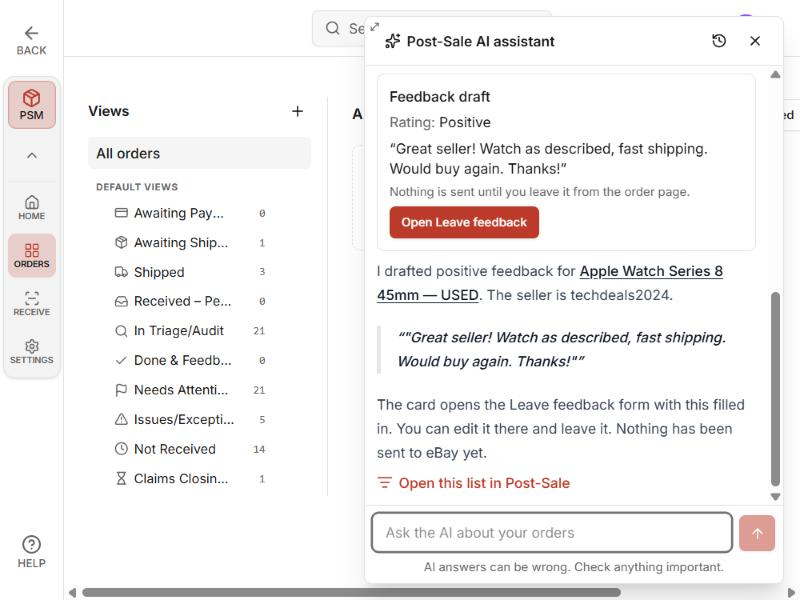
Ask the assistant to write to an order’s seller, and it reads the order and your messages with the seller, then drafts the message on a card. The card shows who it goes to and the exact text. Nothing is sent until you press Send on the order page.
Open in the seller conversation opens the order with Messages showing and the draft in the reply box under Seller conversation. Edit it if you like, then press Send. If you already typed something in the box, it asks “Replace what you typed with the assistant’s draft?”, with Replace and Keep mine.
The draft is written in the language of the seller’s own messages on that order, or in English if the seller hasn’t written, unless you ask for another language. When that isn’t the language you write in, the answer adds a one-line summary in yours. A draft is text only, so it can’t attach photos, and eBay refuses a message with a link or an email address.
The assistant doesn’t draft for an order that has no reply box: a manual order, an order past eBay’s 90-day messaging window, or an order on a disconnected eBay account. For a Try Demo sample order, it says the order is sample data, so there is no seller to write to. Like the feedback draft, a message draft stays only in that browser tab.
What It Can’t Do #
The assistant can’t make bulk changes, send a message to a seller (apart from the Item received message on a card), leave feedback for you, or run a sync. If you ask, it points you to where you can do it.
For more than one order at a time, use the Orders list. If you want an AI to work across your orders, connect Claude: see Post-Sale Management: API/MCP in Claude.
The assistant can’t buy, pay, or open a return or a claim. For returns and claims, Post-Sale links to your eBay Purchase History when the order qualifies.
The assistant can’t search eBay for things to buy. Scout does that: see Ask Scout: Find eBay Listings in Plain Words.
AI answers can be wrong, and the window says so. Check anything important on the order itself before you act on it.
Your Chats #
Press the clock icon at the top of the window to see your chats. Each chat is named after its first question. New chat starts a fresh one.

Reloading the page starts a new, empty chat. The list shows your 50 newest chats.
To delete a chat, press its trash icon and confirm. This can’t be undone.
Messages older than a year are deleted automatically.
“Delete my data” under Post-Sale Settings, Export & data deletes all your Post-Sale assistant chats. Your Scout chats stay. It also permanently deletes your orders, notes, tags, status values, custom-field values, photos, webhooks and history, so only use it if you mean all of that.
Your question, and the order data the assistant looks up to answer it, go to our AI providers, including the receiving photos and listing pictures a photo check compares. The Privacy Policy has the details.
Limits #
One chat can do 30 lookups in 24 hours, and one question can use several. After that the assistant tells you the chat has reached its lookup limit and to start a New chat.
The assistant and Scout share their usage limits, and a Scout answer still running can keep the assistant busy.
The square Stop button stops showing an answer, and you can usually send your next question at once. The stopped answer still finishes in the background and counts toward your daily allowance. “Your previous answer is still being written. Wait for it to finish, then send this again.” means another answer is still running, for example after you pressed Stop twice in a row, while a Scout answer is running, or after you stopped an answer that was making a change you confirmed.
If you press Stop before anything shows in a new chat, the window says “Stopped before an answer. Your question is back in the box below.” Press send to ask it again.
“You’ve hit the assistant’s request limit” means wait a few minutes and try again.
“You’ve reached the assistant’s usage limit for today” means the day’s allowance is used up. It resets at midnight UTC.
“The assistant can’t check its usage limits right now” means nothing was run. Try again in a few minutes.
Reading seller messages, checking live listings and reading a listing’s pictures for a photo check count toward a limit of 60 eBay reads per person per clock hour. Apps you connect, such as Claude, and your API key draw on the same limit.
FAQ #
Can the assistant change my orders? Only when you press Confirm on its card, one order per card.
Can it message a seller or leave feedback? It drafts a message to the seller, or a rating and comment for feedback, and you send each one yourself from the order page. The only thing it sends is the Item received message you choose on a card.
Can the assistant check if what I received matches the listing? Yes. On the order’s page, ask whether what you got matches the listing. It compares the newest 4 receiving photos with the listing’s pictures and tells you what looks different. Add photos first with Attach photo.
Is it the same as Scout? No. Scout finds eBay listings and saves searches, and it doesn’t read your orders. The Post-Sale AI assistant reads your orders and can’t search for listings to buy.
Is it the same as connecting Claude? No. The assistant is built into Post-Sale, needs no connector and changes an order only when you press Confirm. The web app Post-Sale Management API/MCP connects your own Claude, which can also make changes if you turn those on.
Can I turn it off? There is no switch for it. The Post-Sale switch under Settings → Account covers outside apps only, not this assistant. It reads your orders only when you ask it a question, and changes one only when you press Confirm.
Still stuck? Contact us at ubuyfirst.com/support.


