
Check items in as they arrive — with inspection checks, photos, and your own fields
Table of Contents #
The Receiving Desk #
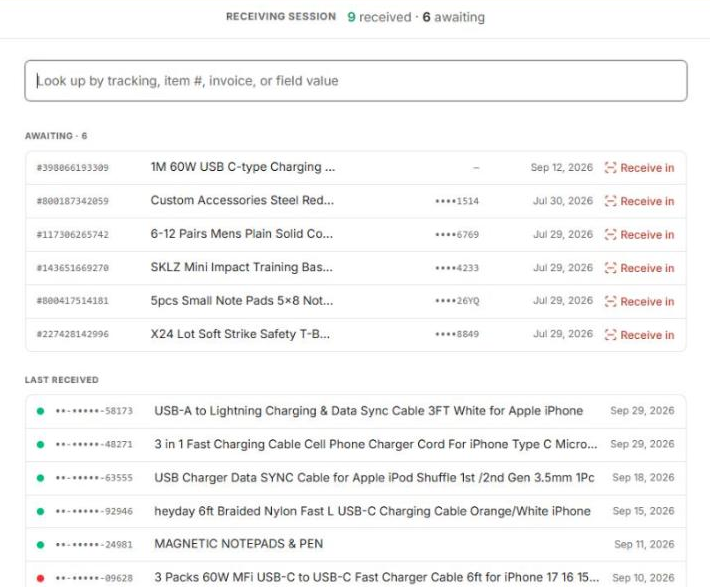
Receive (left nav) opens the receiving desk: a session counter (received / awaiting), a lookup box, the awaiting list and, below it, your Last received items. Type or scan an order, item or tracking number in the lookup box and press Enter: one match opens straight away, several stay listed to pick from.
Look an item up by tracking number, item number, or invoice — or pick it from the awaiting list.
A package you already checked in sits under Last received. Opening it there shows a view, not the form: a note that it is already received, Open order (its PSM order page, in a new tab), Open listing, its Photos (attach or remove), Leave feedback while eBay still allows it, and Put back to Delivered if it should not have been received, which brings the form back.
Receive an Item In #
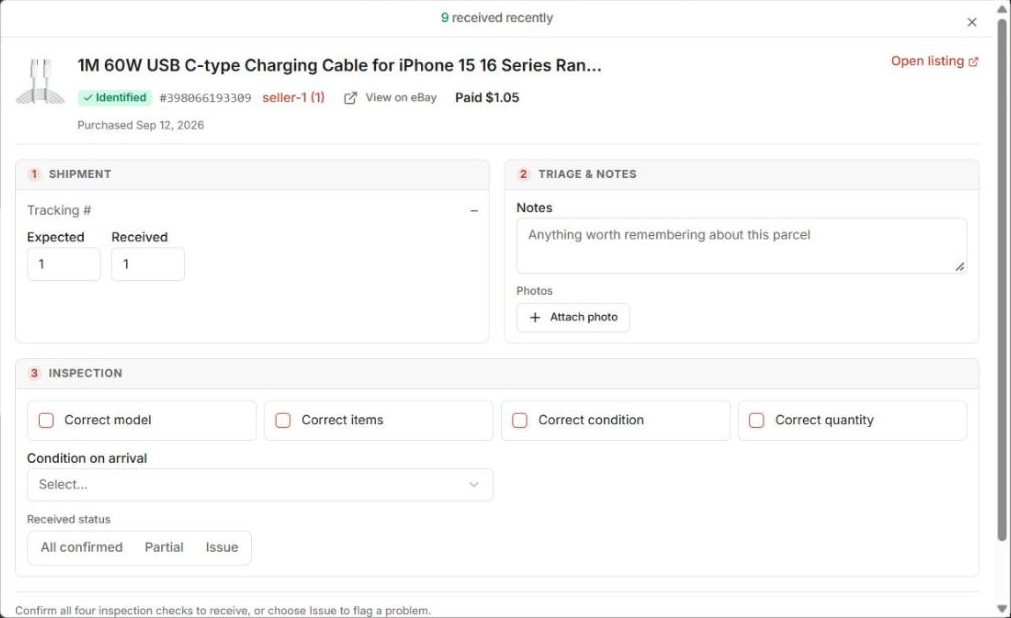
Hit Receive in on the item. The pop-up’s header links to the listing on eBay (Open listing) and to the PSM order page (Open order, in a new tab, so the desk stays where it is). The receive form has three parts:
- Shipment — the order/shipment details.
- Triage & Notes — notes and photo attachments.
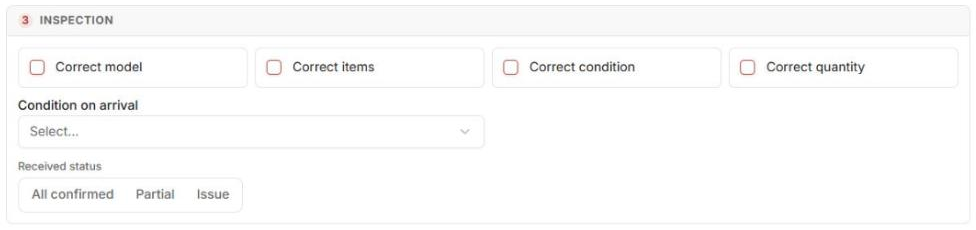
- Inspection — four baseline checks: Correct model / Correct items / Correct condition / Correct quantity, any receive fields you added, plus a Received status (All confirmed / Partial / Issue).
Confirm the checks, attach photos if you want, and hit Receive this item.
Workspace Only.
Receiving marks the item received in your PSM workspace — it doesn’t push anything to eBay.
Your Own Receive Fields #
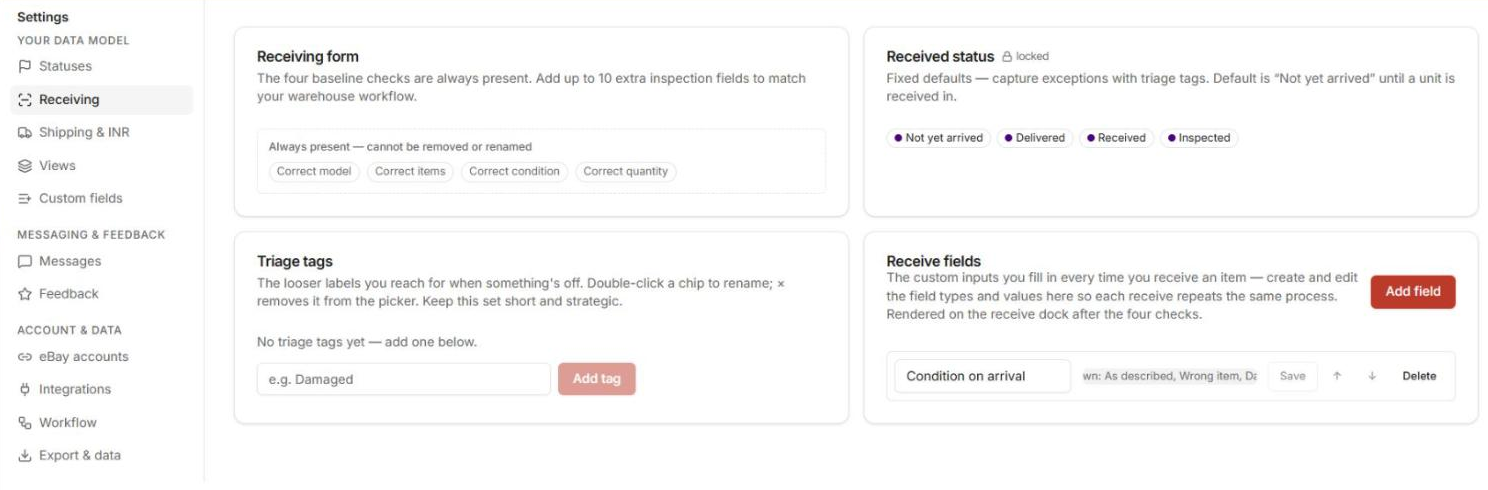
Add up to 10 custom fields to the receive form under Settings → Receiving → Receive fields — text, checkbox, or dropdown (enter dropdown options comma-separated). They render on the form below the inspection checks.
Triage Tags #
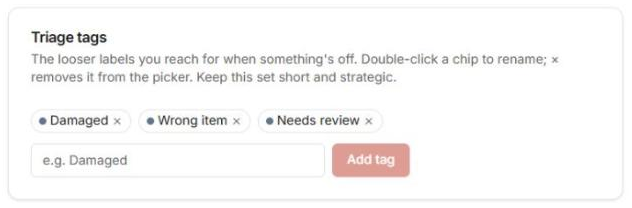
Settings → Receiving → Triage tags holds quick labels for when something’s off (damaged, wrong item, needs review — whatever fits your operation). Add them as chips.
Known Quirk.
Where triage tags get applied is still being wired up cleanly — set them up in Settings now; the apply surface is being confirmed.
The Receiving Baseline #
The four inspection checks are always on the form and can’t be removed or renamed. Receiving comes with built-in values (Not yet arrived · Delivered · Received · Inspected). You can rename them in Settings → Statuses but not remove them, and you can add your own there too. Your custom fields and tags layer on top.
Next: keep state on every order: Statuses & Tags.


