
Catch great deals that sit just above your price limit — without blowing your budget.
In this article
- Overview — What Is Best Offer Over Max?
- How It Works — Two Levels of Settings
- Setting the Default Rule
- Applying It to a Search
- Viewing & Managing Results
- Editing Saved Searches & Alerts
1. Overview — What Is Best Offer Over Max? #
Most buyers set a maximum price on their searches to stay within budget. The problem: some of the best deals are listed a little above that limit — and when a listing accepts Best Offers, there’s a real chance you can offer your price and still get it.
The Best Offer Over Max feature makes sure you don’t miss those deals. It shows you listings priced just above your maximum — up to a limit you set — so you can send an offer and try to bring the price down to what you wanted to pay.
Real-world example
You’re buying an iPhone 16 Pro with a max of $600, but you’re willing to make offers on items priced a bit higher. Set your over-max threshold to 20% (about $120) and those items up to $720 now show up in your search results so you can send an offer.
Why use it?
- See profitable listings you’d normally filter out.
- Stay in control — you decide how far above your max to look.
- Win more items through Best Offer instead of overpaying at list price.
2. How It Works — Two Levels of Settings #
The feature works on two levels, so you get both a convenient default and full per-search control:
- Default setting — you set this once in your Search Profile. Every new search you create automatically starts with it.
- Per-search setting — any single search (or alert) can use a different value, just for that search.
Important: If the feature is turned off in your default settings, it won’t appear anywhere in the app. Enable it first, then fine-tune it per search.
3. Setting the Default Rule #
Start in your Search Profile, where the most important settings live. To get there, go to Search, click Config at the lower left, then click Profile. These are your default settings — every new search you make will start with them.
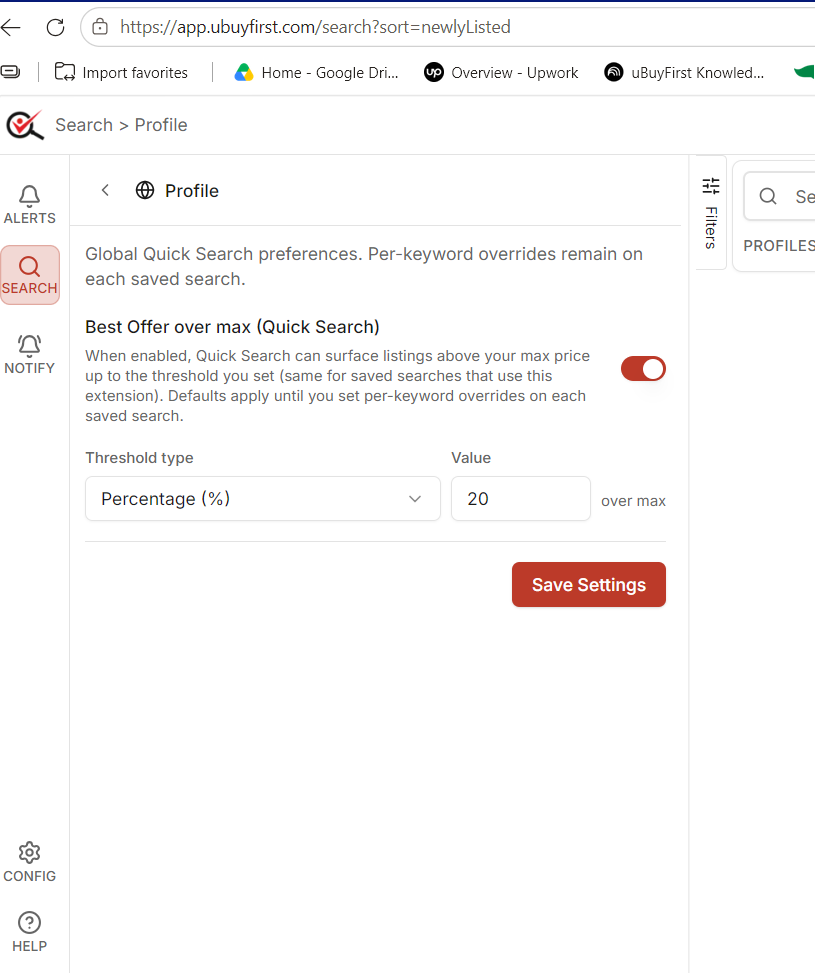
- This is where you turn it on: Search › Profile — flip the “Best Offer over max (Quick Search)” toggle on, choose a threshold type, set a value, and click Save Settings.
To configure it:
- Go to Search, click Config at the lower left, then click Profile to view your default settings.
- Turn on the Best Offer over max (Quick Search) toggle to activate the feature.
- Choose a Threshold type — either Percentage (%) or a fixed Amount of money.
- Enter a Value (for example, 20% over your max).
- Click Save Settings.
From now on, every new search you create will use this default unless you override it.
4. Applying It to a Search #
Once the feature is enabled, you can use it on any search. Type your keywords into the Search for anything field — for example, iPhone 16 Pro.
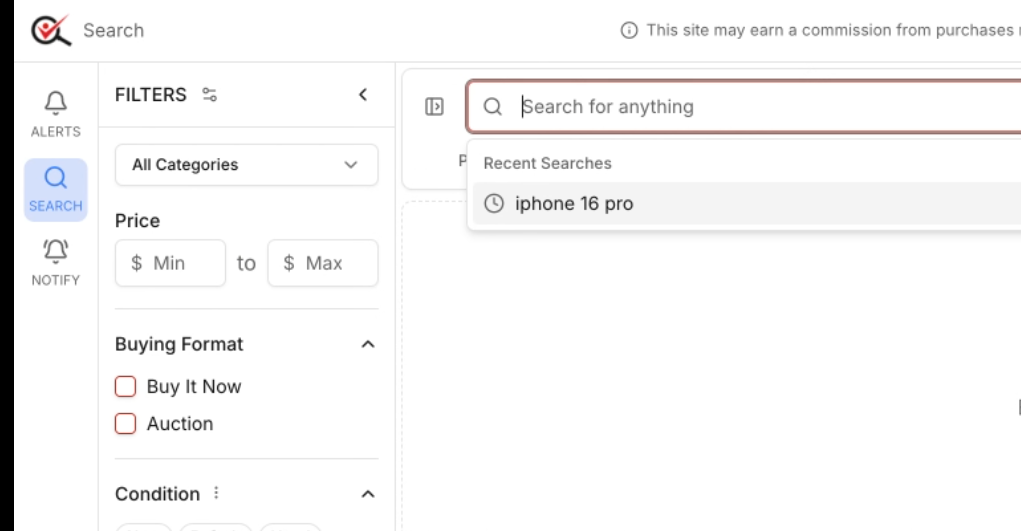
- Enter your keywords in the search bar to load listings.
After the products load, set your price range in the Price filter — for example, $500 to $600. As soon as you enter a maximum price, the Best Offer over max options appear for this search, letting you set a value that’s separate from your default.
Don’t see the Price boxes or filter options? The Filters panel is simply closed. Look for the Filters tab along the left edge of the search screen and click it — the panel opens and the Price boxes appear.
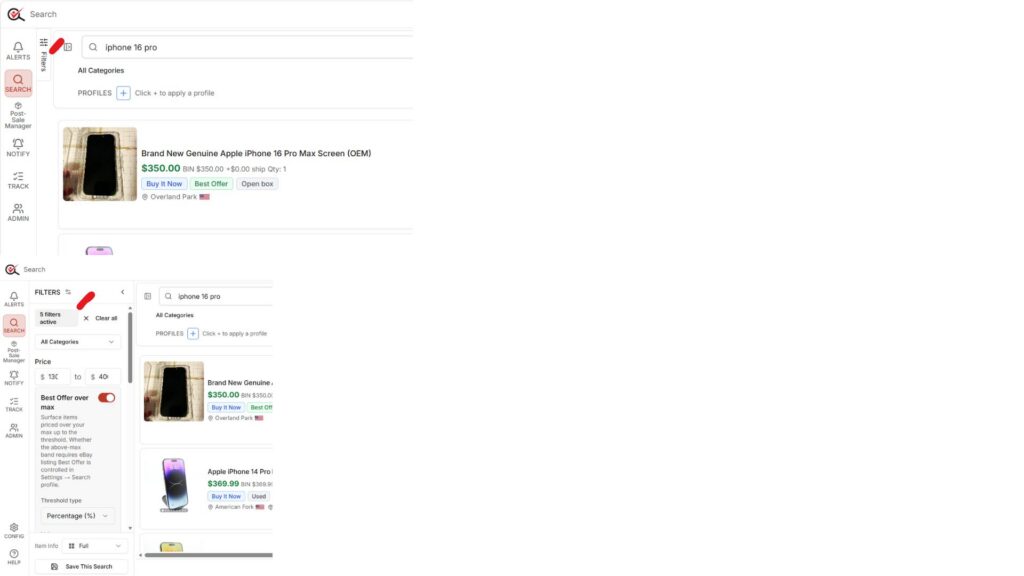
- If the panel is closed, you’ll see the top view — only a thin “Filters” tab. Click that tab and the panel opens like the bottom view, showing the Price boxes and the Best Offer over max options.
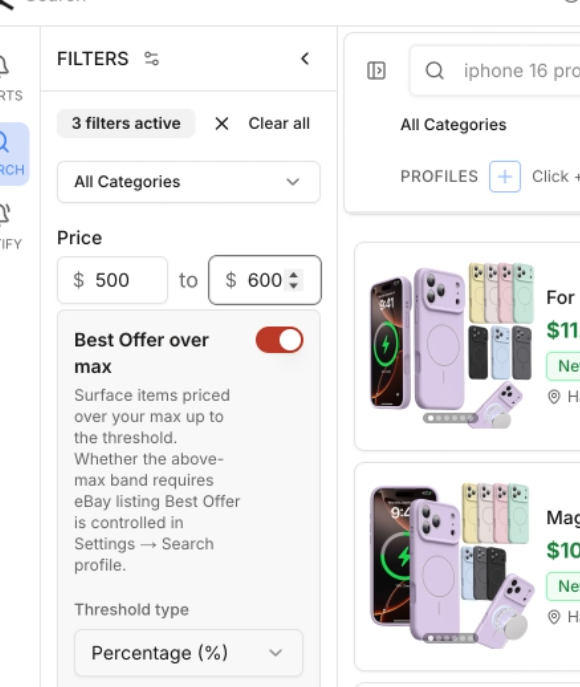
- Each search can have its own Best Offer over max value — different from your default whenever you want.
- Enter your keywords (e.g. iPhone 16 Pro) and let the results load.
- Set your Min and Max price (e.g. 500–600).
- Adjust the Best Offer over max value for this search if you want something different from the default.
- Click Save This Search to keep the settings for next time.
5. Viewing & Managing Results #
When results appear, you’ll see two separate counts at the top:
- The total results within your normal price range.
- A separate Over max price count for listings priced above your maximum.
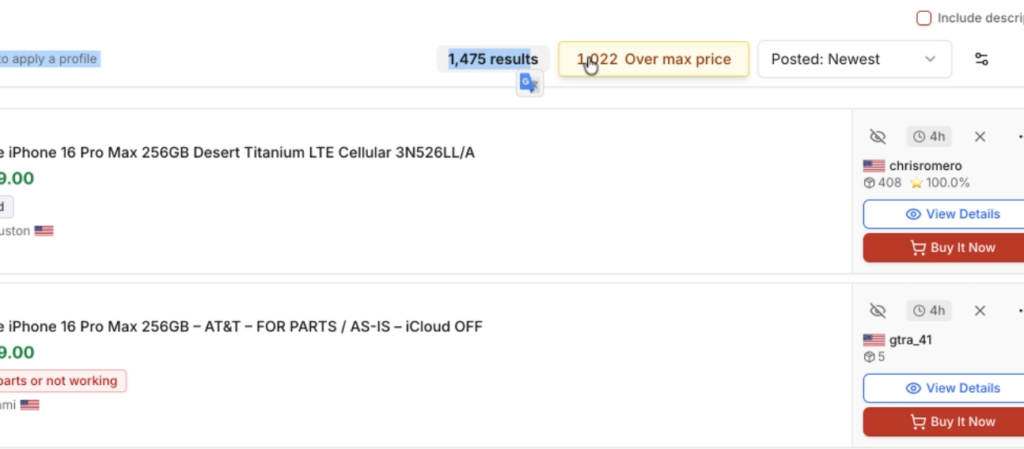
- At the top of your results: your normal count and a separate, highlighted “Over max price” count — click it to display only the over-max items.
Click the Over max price counter to view only the listings priced above your maximum. These items are always highlighted in yellow so you never miss them, and pagination switches to show just this over-max group.
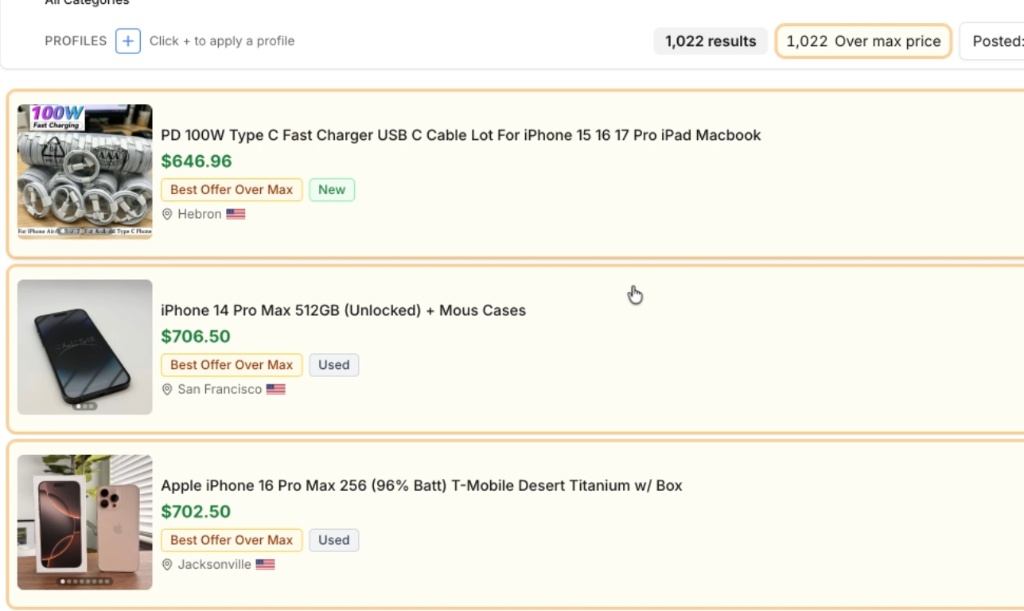
- How these items look in your results: each over-max listing sits in an orange-outlined card with a yellow “Best Offer Over Max” badge, alongside its price, condition, and location.

- A single card up close: this iPhone 16 Pro is priced at $704.97 — above the $600 max, but tagged Best Offer Over Max. Click Offer (or Best Offer) to send your price.
Tip: Click the Over max price counter again to switch back to your normal results.
6. Editing Saved Searches & Alerts #
The Best Offer over max controls aren’t just for new searches. Open any Saved Search to edit it and you’ll find the same settings block — enable or disable the feature, or change the value, whenever you like.
The exact same block appears on Alerts too. Anywhere you set up a search, the Best Offer over max option is available for you to adjust.
Quick recap
- Set your default rule once in Profile.
- Use a different value for a single search whenever you set a max price.
- Watch the yellow Over max price results for deals worth an offer.
- Adjust it any time from Saved Searches or Alerts.


