
Turn eBay category fields into columns in your results grid (build V3.6.1.0)
What This Does.
eBay lists item specifics per category, such as Carrier and Lock Status for phones or Type and Power Source for calculators. Custom Columns pulls the ones you pick into the results grid, so you can sort, filter and judge a listing without opening it on eBay. They also work in Filters, SKU Manager and Item Properties.
Table of Contents #
- Add Columns from a Category
- Manage or Remove Columns
- Where the Columns Show Up
- Product Identifier Columns
- Troubleshooting
Add Columns from a Category #
1. Open Grid → Items Specifics. The Custom Columns window opens. #

You can also right-click any column header in the results grid and choose Add custom columns.
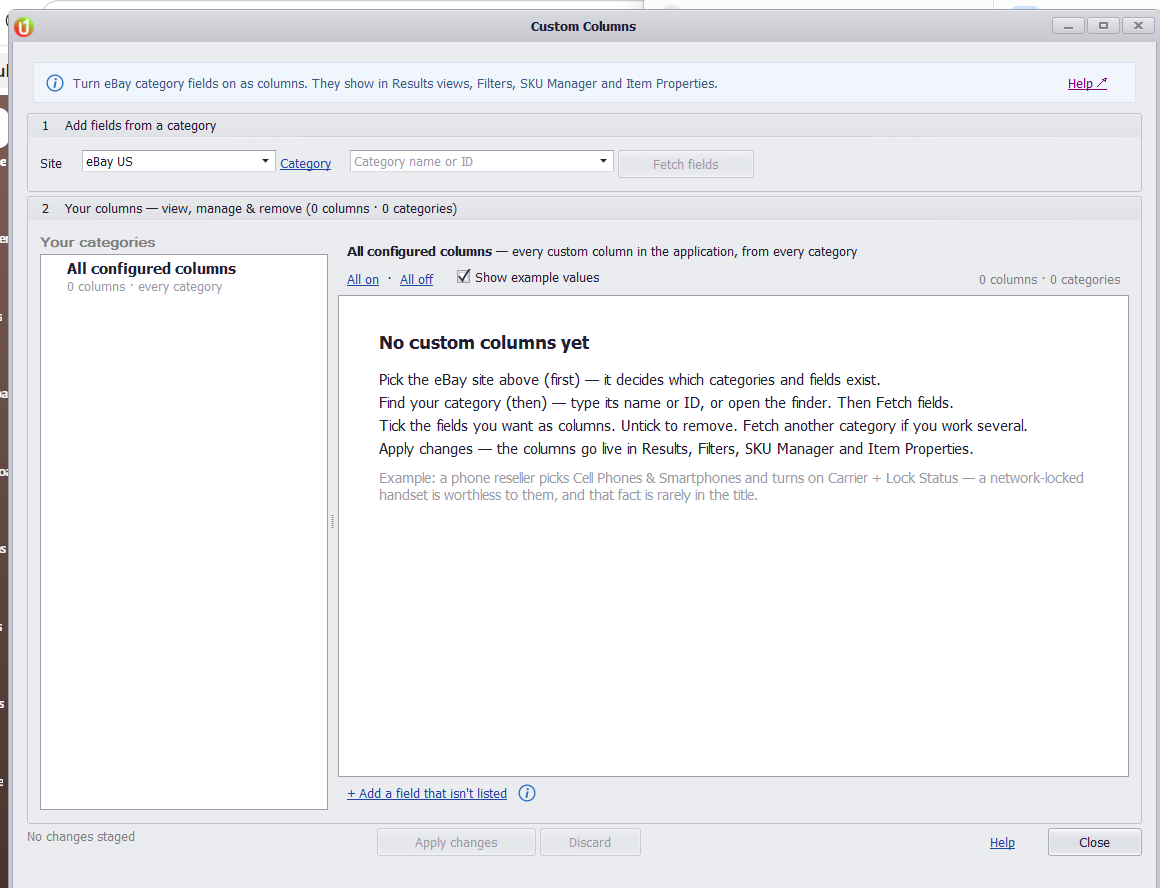
2. Pick the eBay Site you buy on. It decides which categories and fields exist. #
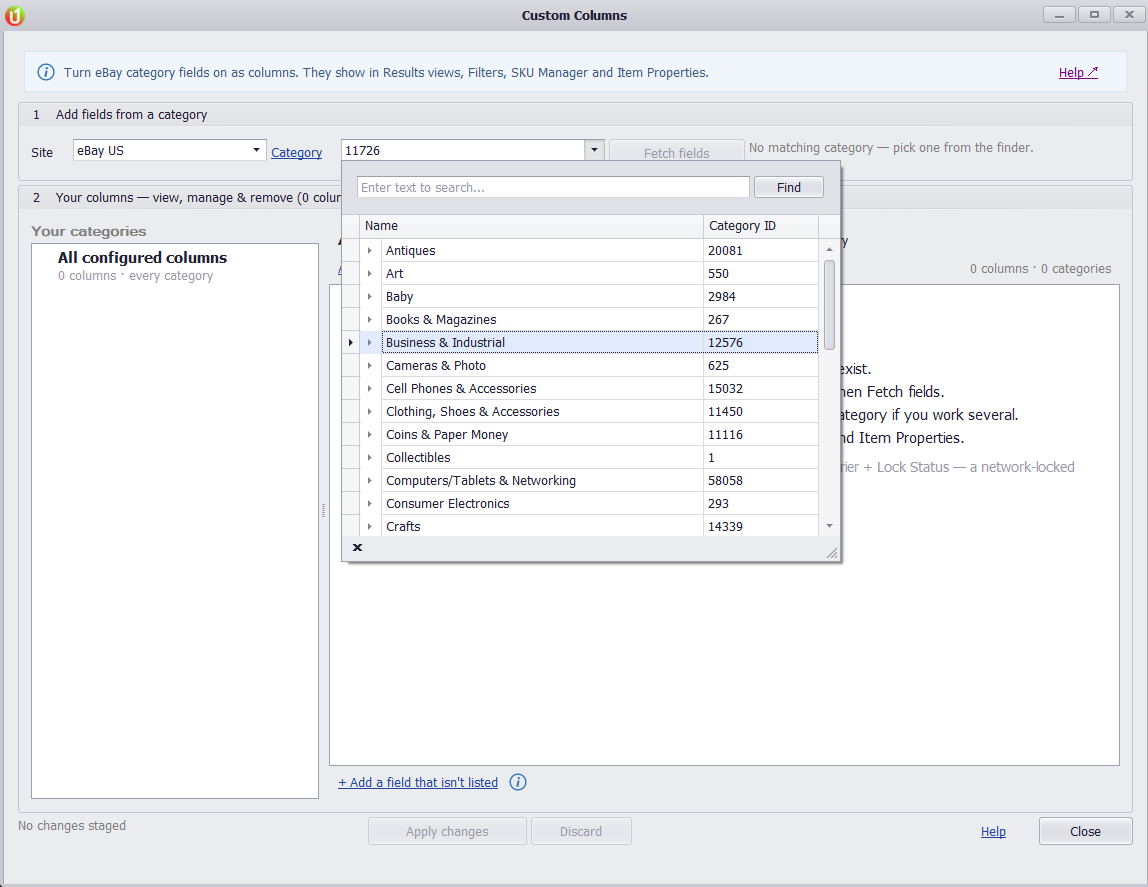
3. Open the Category dropdown, search for your category in the finder and pick it. #
The finder searches the full eBay category tree by name. You can also type a category ID straight into the box, but the finder is the reliable way.
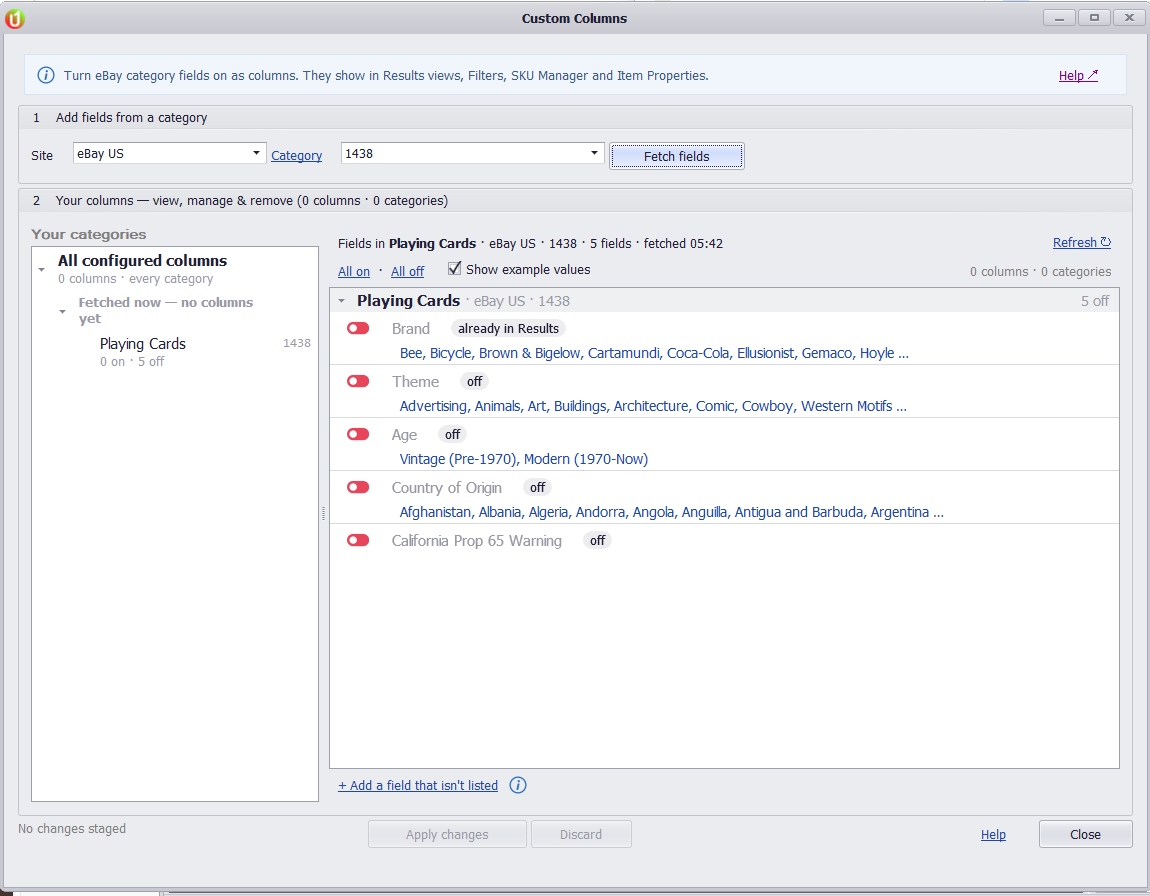
4. Click Fetch fields. Every field eBay offers for that category appears, with example values. #
Fields already in the grid, such as Brand, are marked “already in Results”.
5. Switch on the fields you want. Each one is staged as “to add” and the button reads Apply changes with a count. #
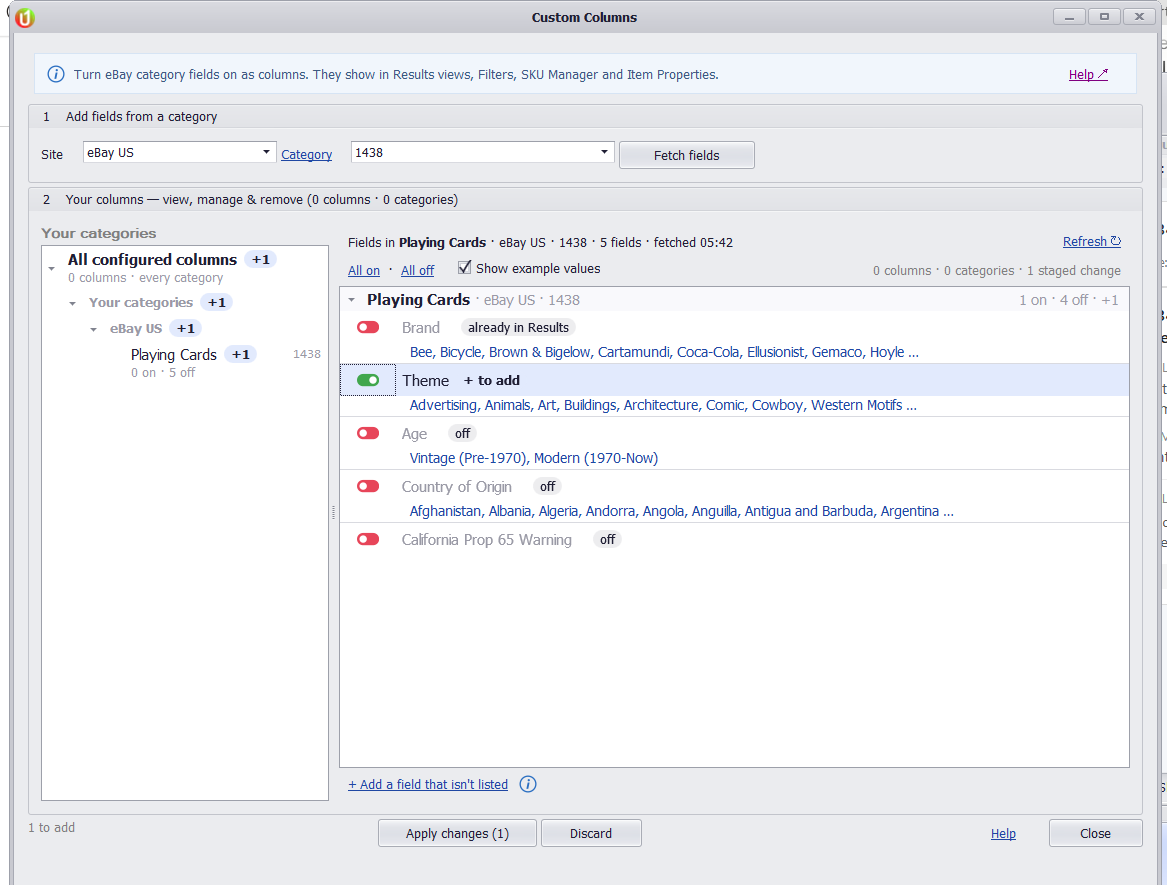
6. Click Apply changes. A green bar confirms the columns are live. #
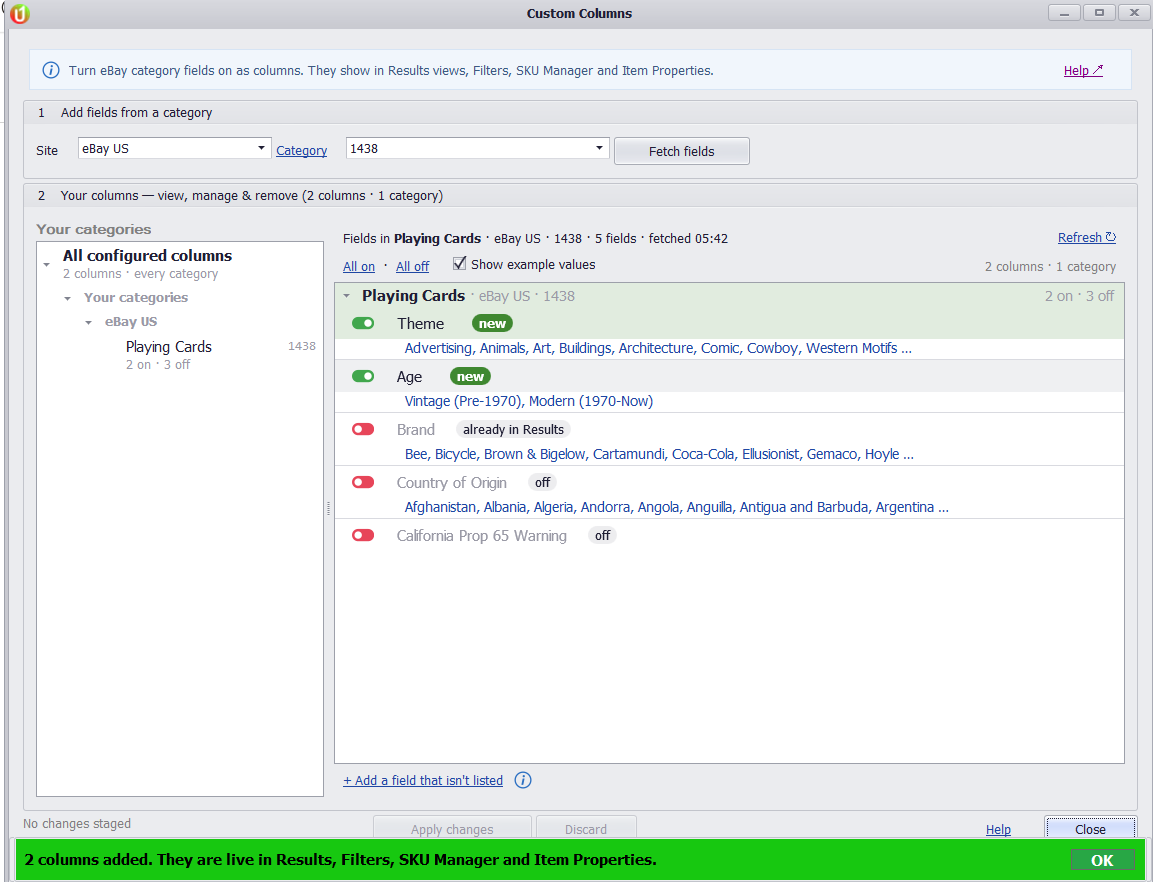
New Results Only.
Custom columns fill in for listings that arrive after you add them. Rows already in the grid stay blank. Start or restart your search to see values.
Working several categories? Fetch the next one and switch on its fields the same way. Your columns from every category stay listed on the left.
Manage or Remove Columns #
Open Grid → Items Specifics again. The left side lists your categories and how many fields are on in each. Switch a field off and click Apply changes to remove its column. Discard drops staged changes you have not applied.
A field eBay does not list for the category can be added with + Add a field that isn’t listed at the bottom of the list.
Where the Columns Show Up #
New columns are added at the right-hand end of the results grid. Drag a column header to move it. The layout is kept when you close the app; to save a named copy, use View → Workspace → Capture Workspace. The same fields are available as conditions in filter rules and to SKU Manager prompts and scripts.
Product Identifier Columns #
These columns are built in, so they need no Custom Columns setup, but they start hidden: Brand, MPN, Model, UPC, Product Reference ID, plus Seller Business (business or private seller) and Seller Country. To show one, right-click any column header, choose Column/Band Chooser, search for it and tick it. Sort, filter and search on them like any other column.
Troubleshooting #
| What you see | Why | What to do |
|---|---|---|
| “No matching category” after typing a name or ID | The box only accepts an exact category ID, and not every ID resolves. | Open the dropdown and use the finder’s search instead. |
| Fetch fields is greyed out | No valid category is selected yet. | Pick the category from the finder first. |
| New columns are empty | Values only fill for listings found after the column was added. | Restart the search. Existing rows will not back-fill. |
| Column missing from the grid | It is on, but hidden or scrolled off to the right. | Scroll right, or right-click a column header, choose Column/Band Chooser and tick it. |


