
See one listing’s details next to your results, laid out your way (build V3.7.2.0)
The Item Properties panel shows the details of the listing you click in Results: condition, price and shipping, seller and listing facts.
It keeps fields like the condition description, returns and seller details in view without adding columns to the results grid.
It is also a quick place to re-check the details before you buy.
Table of Contents #
Open the Panel #
1. Open View → Panels and tick Item Properties. #

2. Click a listing in Results. #
The panel shows its title and item number at the top, then four sections: Condition, Price & shipping, Seller and Listing.

Values read as words. Returns shows “Yes, 30 days” or “No”, and Listing Type shows Buy It Now, Auction or Auction + Buy It Now.
Best Offer and Commit To Buy show Yes or No. A dash (—) means the listing does not say.
Move the panel where you want it in your workspace. To keep that arrangement, save the workspace with View → Workspace → Capture Workspace.
Pick a Layout #
1. Click the gear icon at the top right of the panel. #
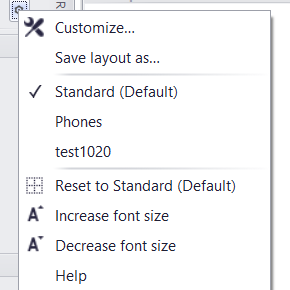
2. Click a layout to switch to it. The tick shows the one in use. #
Standard (Default) is the layout uBuyFirst ships. Phones is a second example layout. Layouts you save yourself are listed under them.
Reset to Standard (Default) puts the shipped layout back on the panel.
Increase font size and Decrease font size change the panel’s text size. Help opens this article.
After the update to 3.7.2, the panel switches once to Standard (Default). If you had arranged the old panel, set it up again in Customize and save it as a layout.
Customize the Panel #
1. Click the gear icon and choose Customize… The Customize Item Properties window opens. #
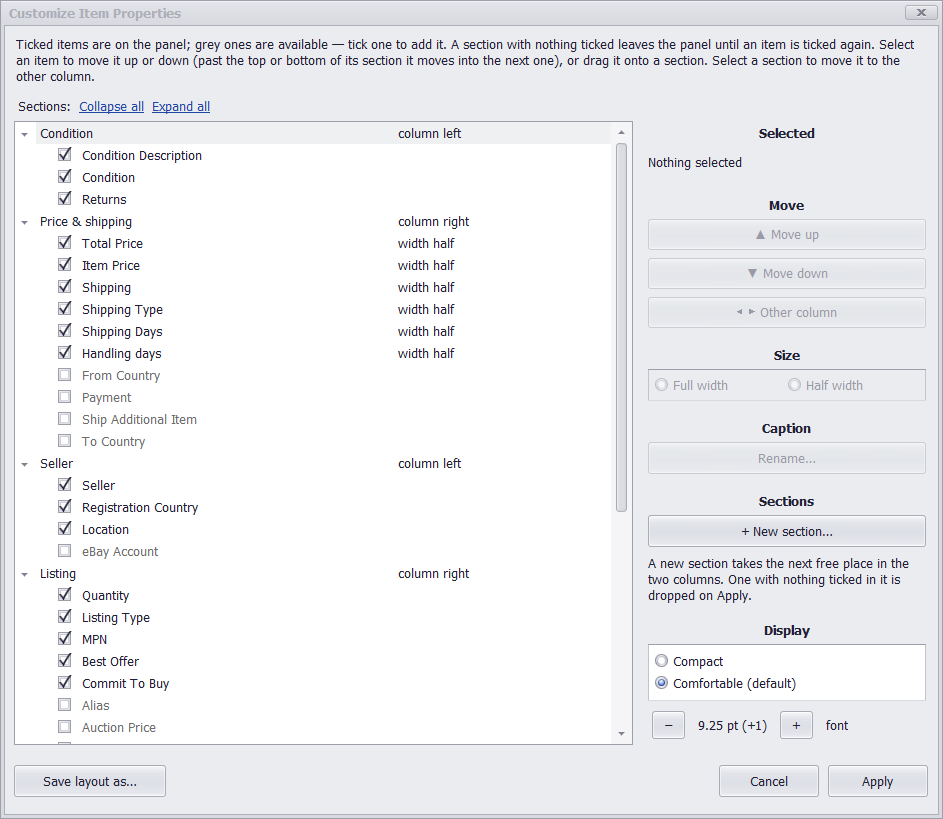
2. Tick an item to put it on the panel. Untick it to take it off. #
Grey items are available but not shown.
3. To move an item, select it and click Move up or Move down. #
Past the top or bottom of its section it moves into the next section. You can also drag it onto a section.
4. To move a whole section, select it and click Other column. #
5. Optional: set an item to Full width or Half width, rename a section or item with Rename…, or add a section with + New section… #
6. Under Display, choose Compact or Comfortable (default), and use − and + to change the font size. #
7. Click Apply. #
Cancel closes the window and leaves the panel as it was.
Two sections start off the panel: Timing (Found Time, Posted Time, Sold Time, Page Views) and Item specifics. Tick an item in either to show the section.
Item specifics lists the custom columns you turned on, grouped by eBay category.
Alias and Term, in the Listing section, show the search that found the listing. They are off by default.
A section with nothing ticked leaves the panel until you tick something in it again.
After Apply, the gear menu shows the layout name with “(edited)”, for example Standard (edited), until you save it as a layout.
Save Your Own Layout #
1. Click the gear icon and choose Save layout as… #
The Customize window has the same button.
2. Type a Layout name and click OK. #
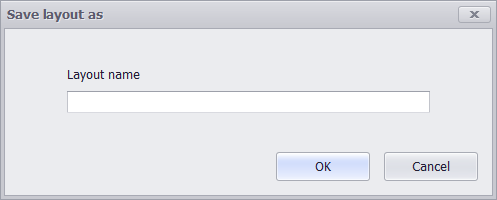
The new layout appears in the gear menu with a tick. To change it later, customize the panel and save again under the same name. The app asks before it replaces a layout.
Names ending in (Default) belong to the shipped layouts and can’t be used. A name can be up to 100 characters and can’t contain these characters: \ / : * ? " < > |
Your saved layouts are included when you create a backup. See Backup & Restore.
Troubleshooting #
I can’t see the panel. Open View → Panels and tick Item Properties. If it is ticked, look for an Item Properties tab on the edge of the window and click it.
Customize says the layout was arranged outside Customize. The full message is “This layout was arranged outside Customize, so this form can’t edit it.” Click Yes to start from Standard (Default), or No to close the window and keep the panel as it is.
My old arrangement is gone after the update. The 3.7.2 update switches the panel to Standard (Default) once. Set it up again in Customize and save it with Save layout as.


