
Send an offer on a Best Offer listing without leaving uBuyFirst (build V3.7.2.0)
What You Need.
An eBay account linked inside the app (Options → eBay Accounts), the same link Commit to Buy uses. How to link it: Buy Commit to Buy Items Through App → Link Your eBay Account.
Table of Contents #
Open the Offer #
1. Find a listing that accepts offers: the Best Offer column reads True. #
2. Right-click the row and choose Make Offer. #
The Make Offer button in the Buy panel does the same for the selected row. Both are grey when the listing takes no offers.
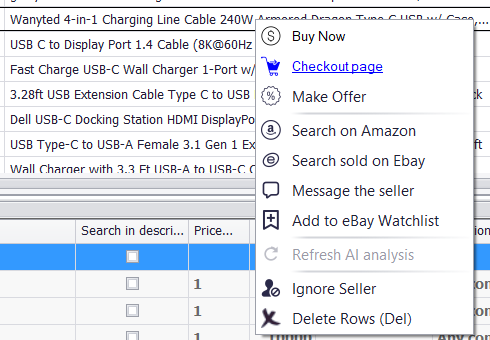
3. The Purchase Preview opens with Make Offer selected at the top right. #
On a listing with variations, such as sizes or colors, Make Offer opens the listing page on eBay instead, and you pick the option and make the offer there. It does the same when no eBay account is linked, when in-app Commit to Buy is switched off for your license on our side, or while the app hasn’t loaded its settings from our server yet, for example just after it starts. In those cases the app sends no offer itself.
Three columns: Your offer on the left, Item Details in the middle, Message to the seller on the right. The arrows at the foot of the middle and right columns fold them away.
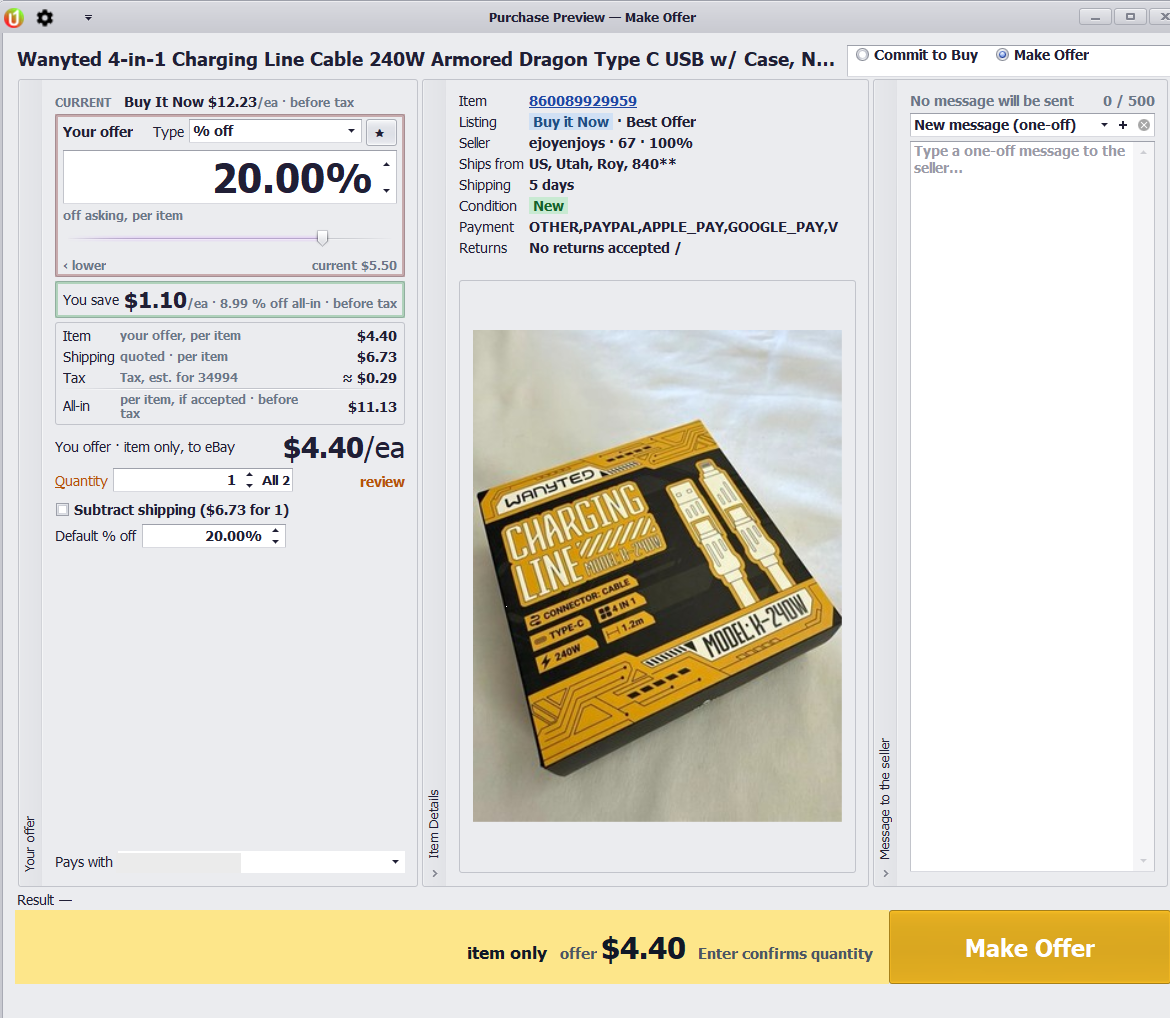
Set Your Offer #
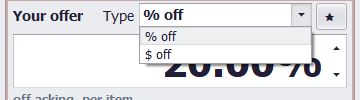
Type: pick % off (a percentage off the asking price; the slider does the same), $ off, or Set price (before tax), your price per item including shipping. Set price is offered on listings with a fixed shipping price; on a listing with calculated shipping the list has % off and $ off.
Below the box, You save shows the saving per item and the percentage off the all-in price. The summary lists Item (your offer per item), Shipping (as eBay quoted it), Tax and All-in per item if accepted. You offer is the item-only figure that goes to eBay. Tax reads “— at checkout”, or an estimate when the keyword has a ZIP code (see Tax Is an Estimate in Buy Commit to Buy Items Through App).
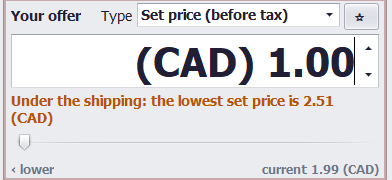
Set price limits: a price under the shipping or over the asking price shows an amber line with the lowest or highest price you can offer; click anywhere else and the box changes to that price.
Quantity: type the number of units, or press All for every unit on offer. With more than one, a × card shows the offer to eBay, the shipping and the all-in for that quantity.
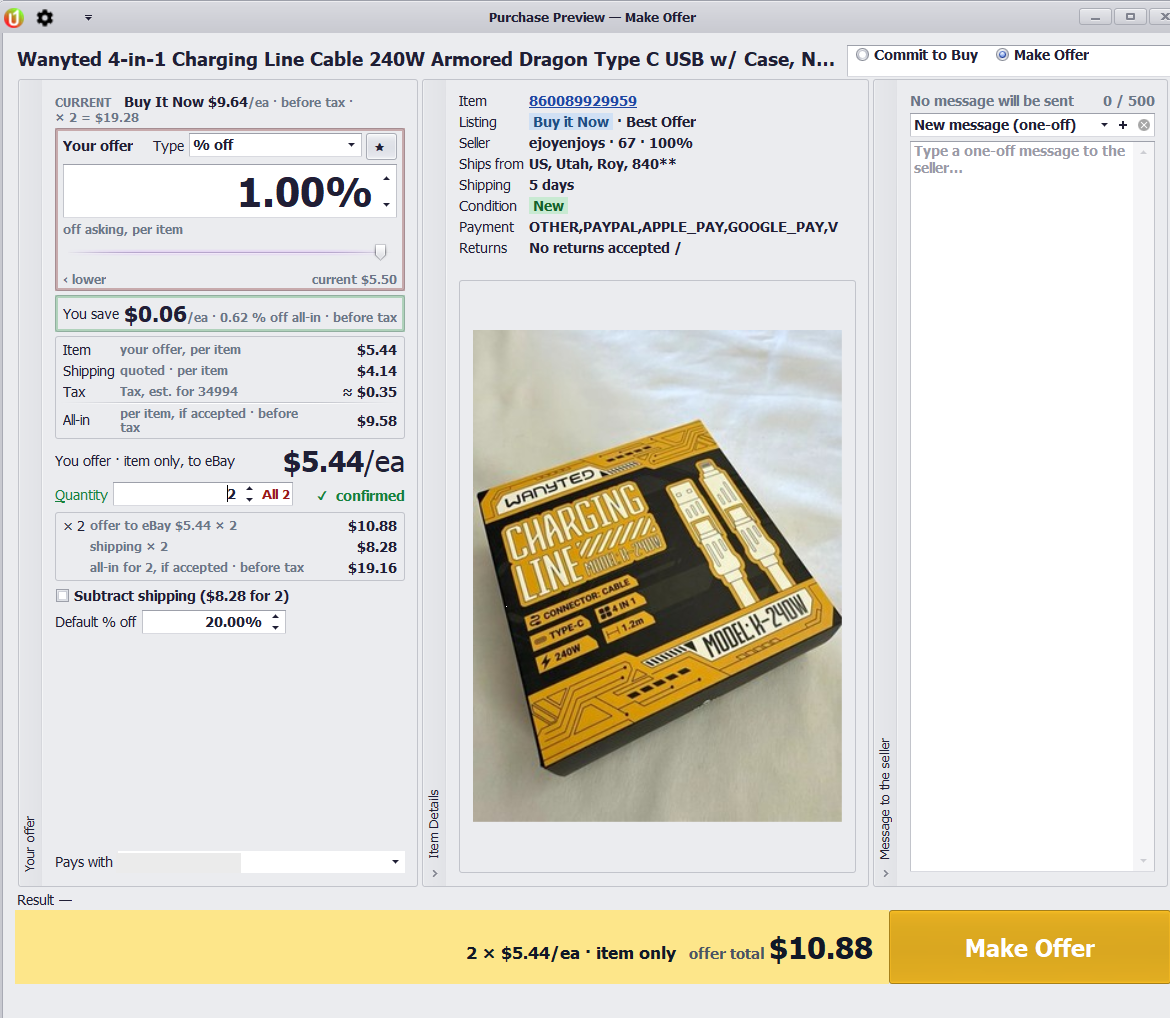
Subtract shipping: tick it to take the quoted shipping off your offer.
Default % off: the percentage the window starts from next time; it remembers your last value.
Message to the seller (optional): pick a saved template, or New message (one-off) and type up to 500 characters. The header says what will be sent; No message will be sent means nothing goes with the offer.
Send the Offer #
The yellow bar reads your offer, for example “item only offer $4.40 Enter confirms quantity”. Press Enter once to confirm the quantity (the Quantity row shows ✓ confirmed), then click Make Offer in the bar or press Enter again to send.
The Result line under the columns says what happened: the offer went out, or why eBay turned it down.
An accepted offer becomes an unpaid order on eBay. Pay it under My eBay → Purchases; eBay adds shipping and tax there.
Tips #
- A seller with an automatic accept price answers at once; a seller who reviews by hand answers on eBay, where you also see counter-offers.
- If the seller does not accept and you still want the item, switch to Commit to Buy at the top right of the same window and buy at the asking price.
- To catch Best Offer listings priced a little above your maximum, raise the keyword’s maximum price and add a filter rule that highlights rows where Best Offer is True.
- The gear at the top left of the window has Customize Layout, Reset Layout and the font size. If the window ever opens squeezed or half built, Reset Layout puts it back.

Reset Layout puts the Purchase Preview window back to its default layout. If the window opens squeezed, with the Item Details column one letter wide, click the gear at the top left of the window and choose Reset Layout; the window is back to normal at once.
Troubleshooting #
| What you see | Why | What to do |
|---|---|---|
| Make Offer is grey | The listing takes no offers. | Check the Best Offer column. |
| Make Offer opens the listing on eBay, not the Purchase Preview | The listing has variations, no eBay account is linked, in-app Commit to Buy is off for your license, or the app hasn’t loaded its settings from our server yet. | Make the offer on eBay’s page (on a listing with variations, pick the option first), or link your account (see Buy Commit to Buy Items Through App). Just after the app starts, try again in a moment; if it keeps happening, restart the app. |
| The Result line says “Not sent: commit to buy is off right now, so the listing opened on eBay instead.” | Commit to Buy went off while the window was open. | Make the offer on the eBay page that opened. |
| The row says “Not sent: the Restocker is buying this listing right now.” | The Restocker is checking out the same listing. | Wait for the Restocker to finish with it. |
| Set price is missing from the Type list | The listing has calculated shipping. | Use % off or $ off. |
| The window opens squeezed, one letter per line | The saved window layout went wrong. | Click the gear at the top left and choose Reset Layout. |
| The Result line is blank after sending | eBay did not answer in time. | Check your offers on eBay before offering again. The offer may already be there. |
| After Restore backup, Make Offer opens the listing on eBay | Backups do not include linked eBay accounts. | Link the account again. |


