
Sound Alert #
The desktop app can play a sound when your searches find a new listing. The sound settings are in the Sound group on the Options tab: Sound alert, Select sound and Sound filters….

Sound alert turns the default beep on or off. Select sound picks your own .wav file for the default beep. The app stays quiet for its first three minutes and while the initial search loads; sounds play for new listings found after that.
If your own Select sound file is moved or deleted while the app is running, new listings are silent until you put the file back, pick another sound, or restart the app, which goes back to the built-in beep.
A Different Sound for Some Listings #
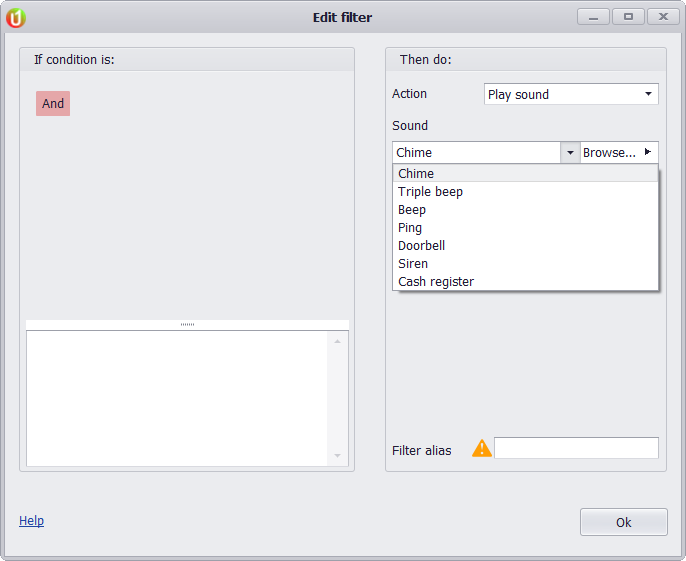
To give some listings their own sound, make a filter with the Play sound action. Sound filters… opens Filters.
In Filters, click + in the toolbar, set the condition, for example Alias Is any of the searches you want to stand out (Alias is your search’s name), and choose Play sound as the action. Pick one of the seven built-in sounds (Chime, Triple beep, Beep, Ping, Doorbell, Siren or Cash register), or press Browse… to pick a .wav file of your own. Press ▶ to hear the sound. Type a name in Filter alias and click Ok.
When a new listing matches a Play sound filter, that filter’s sound plays instead of the default beep, even with Sound alert turned off. Other new listings still beep when Sound alert is on. If several Play sound filters match a listing, the first enabled one in the filter list plays.
A filter’s own sound must be a .wav file no larger than 10 MB on one of this computer’s own drives, not a network share or a mapped drive. If a filter’s file is moved, deleted or can’t be played, the default beep plays instead, even with Sound alert off. If ▶ says “Windows can’t play this .wav file the way it is laid out. Save it again as a plain .wav file, or choose another one.”, do what it says; during a search, that file plays the default beep instead. Short sounds work best: a default beep that would land while a filter’s sound is still playing is skipped.
Prefer an alert on your phone? See all Notify delivery channels in the uBuyAssist web app.


