
Match eBay listings against your own product list and get a buy / pass answer on every listing — no code required (build V3.6.1.0)
Version 3.1 · Takes about 45 minutes the first time.
Table of Contents #
- When to Use Internal Endpoint Mode
- Prerequisites
- Step 1 — Get Your Product List Ready
- Step 2 — Download the Knowledge Package
- Step 3 — Set Up Your AI Project
- Step 4 — Have the AI Write Your Two Scripts
- Step 5 — Open Internal Endpoint Setup (First Run)
- Step 6 — Point It at Your List (Data & Fields)
- Step 7 — Paste Your Matching Script
- Step 8 — Paste Your Display Template
- Step 9 — Finish Setup and Start the Server
- Step 10 — Test It on a Real Listing
- Feedback Traces in IE Mode
- Changing Your Setup Later
- When Something Doesn’t Work
- Support
When to Use Internal Endpoint Mode #
Internal Endpoint mode is for people who already have a list. A buylist, a price guide, an inventory sheet — anything with product numbers and prices in it. uBuyFirst watches eBay, and every time a listing matches something on your list, you get a card telling you what it is, what it’s worth, and whether the price is good.
It also runs entirely on your own machine — no AI provider, no API key, and no per-listing cost. That’s the main practical difference from AI Analysis.
You Don’t Need to Know How to Code.
Internal Endpoint runs on small Python scripts behind the scenes — but you never write, or even read, any of it. You describe what you want in plain English, an AI assistant writes the scripts, and you paste them in. If you can copy, paste, and follow a checklist, you can do this.
You Need Your Own List.
There is no built-in catalog. You must bring a spreadsheet saved as a CSV file on your computer, with one row per product. If you don’t have one yet, stop here and build it first — nothing below will work without it.
Prerequisites #
- An Enterprise license, confirmed and whitelisted for SKU Manager
- A CSV file with your product data, ready on your computer — you’ll prepare it in Step 1
- An AI assistant account — Claude or ChatGPT — set up in Step 3
- The knowledge package — one download, in Step 2
Python and Chrome Install Themselves.
You don’t install either one. The first time you open IE Settings, you accept the user agreement and SKU Manager builds the Python environment and installs its libraries on its own. It takes a few minutes; let it finish and don’t click anything while it runs. That all happens in Step 5.
Getting Whitelisted.
If your licence isn’t whitelisted yet: go to Menu → Help → Subscription Info, copy your License Key, and submit it via Live Support on the uBuyFirst website. You’ll need to wait for confirmation before SKU Manager will run.
“Server is Not Running” Before Setup is Normal.
Open the IE Sku Analysis panel now and it may say “IE SKU Manager Server is Not Running.” That’s expected before you’ve set anything up — not an error. The server starts at the end of the wizard, in Step 9.
Step 1 — Get Your Product List Ready #
Your list must be a CSV file (in Excel or Google Sheets: File → Save As / Download → CSV).
It needs a header row (the top row that names each column), and at minimum three things. Here’s each one, with the column name used in the example throughout this guide:
- A product number — in our example that’s the
SKUcolumn. It’s the number that shows up in eBay titles: a set number, model number, part number, UPC, or card number. This is the thing matching looks for, so every row needs one. - A product name — the
ProductNamecolumn in our example. This is just so you can tell at a glance what matched. - A buy price — the
MaxPricecolumn in our example. This is the price matching checks eBay against: at or under it can be a buy, over it is a pass.
The example list has a few extra columns too — the handy one is MarketValue (what the item is worth). That price is not used to decide buy or pass; it’s only shown on the card so you can see the deal at a glance. Any other extras you want on the card — category, condition, priority, notes — can be their own columns as well.
Check This Before You Go Further.
Open your CSV and look at the price columns. Any row with a blank price can never produce a buy or pass answer — the best it can say is “a human needs to look at this.” That’s correct behaviour, not a bug, but if half your list has blank prices you should know that now rather than discover it later.
Note where the file is saved. You’ll browse to it in Step 6.
Step 2 — Download the Knowledge Package #
This is the project knowledge package we provide — one download of reference material that holds everything an AI assistant needs to know about SKU Manager. You don’t read it yourself. You drop it into a Claude or ChatGPT conversation, and the AI uses it to write your scripts. It covers AI Analysis mode too — one download gets you set up for both.
Between them the files cover how the feature works, the rules every script has to follow, worked examples from different kinds of businesses, ready-made pieces the script can reuse, and the common mistakes to steer around. It’s the same reference material a developer would use to build this by hand — just packaged so an AI can absorb it instantly, so you don’t have to understand any of it.
Download the SKU Manager Knowledge Package
Unzip it and keep the whole folder together. Save the folder somewhere you can find it. Your Downloads folder is fine.
Step 3 — Set Up Your AI Project #
Already Have the Project?
This is the same SKU Manager Assistant project used for AI Analysis. If you built it there, it already contains everything you need — skip straight to Step 4. If not, set it up now and it will cover both modes.
You’ll use a general AI assistant to write your scripts. You do not need an account with any special plan, and you will not be writing code. You describe what you want in ordinary English and it produces the script.
The package goes into a project — not a plain chat. Each provider calls it something slightly different:
- Claude — called a Project
- ChatGPT — called a Project
- Gemini — called a Gem
- Sign in to your AI provider.
- Create a new project and name it SKU Manager Assistant.
- Open the unzipped package folder, select all the files inside it, and drag them onto the Context panel on the right.
- Start a chat inside that project, and pick the latest model with extended thinking turned on.
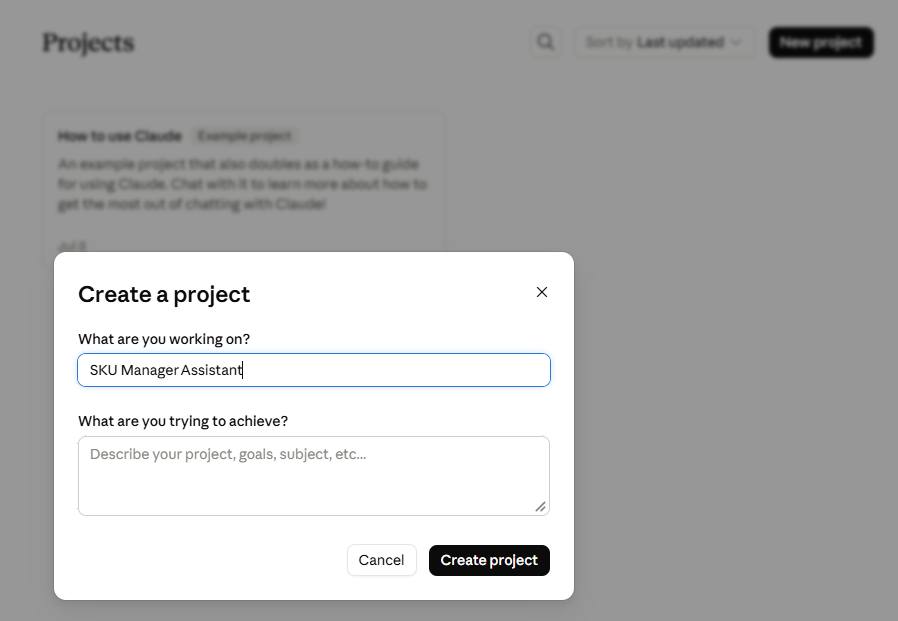
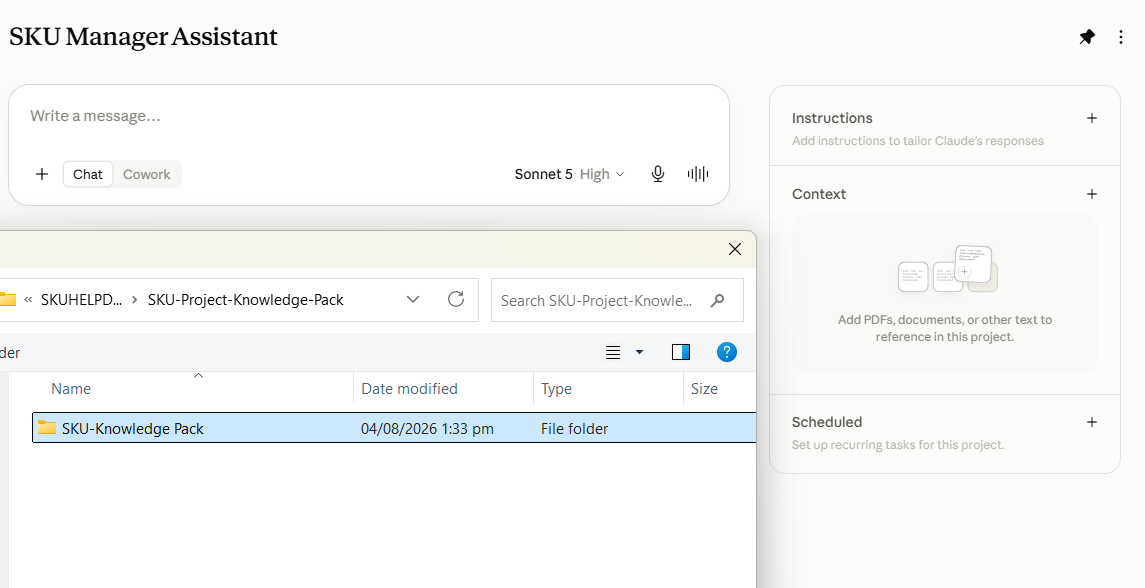
Drag the Files, Not the Folder.
The project won’t accept a folder, and adding files one at a time through the + button takes forever. Open the folder, select everything inside it (Ctrl+A), and drag the whole selection onto the Context panel in one go.
Use a Project, Not a Plain Chat.
A plain chat won’t take the whole package. Loaded once into the project’s Context, every new chat inside that project already has it — there is nothing to re-attach.
Step 4 — Have the AI Write Your Two Scripts #
You need two scripts: a matching script (it decides whether a listing is on your list and what the verdict is) and a display template (it takes those results and turns them into the card you see). The one prompt below gives you both — the AI writes the matching script first, then the display template that shows its results, all in the same reply.
Copy the message below, fill in the four blanks, and send it:
The Internal Endpoint reference files are in this project.
Please write me a matching script and a display template.

My product list columns are: [paste your CSV header row here]

What I'm buying: [e.g. sealed collectible sets in new condition]

How a listing should match: [e.g. the product number appears in the eBay title]

What I want on the card: [e.g. product name, my target price, the eBay price,
the difference, and a clear buy / pass / check-this answer]

Requirements — all four, none of them optional:
1. Use the Adaptive Field Resolver from the reference file. Do not hardcode
   the injected field names.
2. Read my list from csv_name_from_client. Never load a CSV from disk.
3. End the script with an OUTPUT_COLUMNS list naming every column it outputs,
   so SKU Manager can detect them.
4. Include a fallback row, so that when nothing matches the script still
   returns one row explaining why.
Here’s one filled in #
If the blanks above aren’t obvious, this is the same message completed for the example list above. It is complete — copy the whole thing:
The Internal Endpoint reference files are in this project.
Please write me a matching script and a display template.

My product list columns are:
SKU, ProductName, Category, MaxPrice, MarketValue, ConditionWanted, Priority, Notes

What I'm buying:
Retail products I resell — outdoor gear, kitchen equipment, electronics,
footwear and home goods. Mostly I want items in new condition, but a few
rows on my list are marked "Any" and used is fine for those. The
ConditionWanted column says which is which per product.

How a listing should match:
My SKU is a 5-digit product number and it usually appears in the eBay
listing title. Pull any standalone 4-6 digit number out of the title and
look it up in my SKU column. If it's not on my list, it's not a match.

What I want on the card:
- A clear verdict at the top: BUY, PASS, or CHECK THIS
- BUY when the eBay price is at or under my MaxPrice and the condition
  matches what I want
- PASS when it's over my MaxPrice, or it's used and I wanted new
- CHECK THIS when I can't tell — condition unclear, no price on the
  listing, or MaxPrice is blank on my list (some rows have no pricing yet)
- Then: product name, SKU, category, condition, the eBay price, my max
  price, the market value, and how far under my max it is
- Priority and Notes from my list at the bottom
- Sort so BUY comes first, then CHECK THIS, and within that put lower
  Priority numbers first

Requirements — all four, none of them optional:
1. Use the Adaptive Field Resolver from the reference file. Do not hardcode
   the injected field names.
2. Read my list from csv_name_from_client. Never load a CSV from disk.
3. End the script with an OUTPUT_COLUMNS list naming every column it outputs,
   so SKU Manager can detect them.
4. Include a fallback row, so that when nothing matches the script still
   returns one row explaining why.
Three Details Worth Copying.
Say what to do when data is missing. “Some rows have no pricing yet” is why blank-price products come back as check this rather than a confident wrong answer. Leave it out and an AI will often treat a blank price as zero — turning every unpriced row into a false buy. Define the verdicts, don’t just name them. “Buy when the price is under my max and the condition matches” — without the second half you get a script that ignores condition entirely. Say what order you want results in. Otherwise they come back in whatever order your spreadsheet happens to be in. Rule of thumb: describe your decision the way you’d explain it to a new employee, awkward cases included. The AI writes the code; you supply the judgement.
Do Not Skip the Four Requirements.
The Adaptive Field Resolver is a small piece of the reference file that looks up eBay’s field names safely instead of guessing them. Field names differ between builds of uBuyFirst. If the AI guesses and guesses wrong, your script reads empty information and quietly matches nothing — with no error message anywhere. Every listing comes back “no match”, the error log stays empty, and there is no way to tell what went wrong. This is the single most common way this setup fails.
Check What You Got Back.
You don’t need to read the code. Press Ctrl+F on the AI’s reply and check these three words appear:
Adaptive Field Resolver,OUTPUT_COLUMNS,fallback. If any is missing, reply: “Please add the Adaptive Field Resolver, the OUTPUT_COLUMNS list, and a fallback row.” It will add them. Missing them is the difference between a setup that works and one that silently finds nothing.
When the AI replies, save each script into its own plain text file on your computer — for example my-matching-script.txt and my-display-template.txt.
Golden Rule.
Always keep your scripts in files on your computer. Never let the app be the only copy — profile changes and resets can wipe them.
Step 5 — Open Internal Endpoint Setup (First Run) #
In uBuyFirst: Data tab → IE Python code group → IE Settings.
Can’t See IE Settings?
At the default window width the IE group is folded into a single IE Python code ▾ dropdown at the right of the Data tab. Click it to reach IE Settings, Start IE Server and Open IE Traces, or widen the window and the three buttons spread out.


1. Accept the User Agreement #
The first time you open IE Settings, the SKU Manager – User Agreement appears. Read it, then click I Agree.
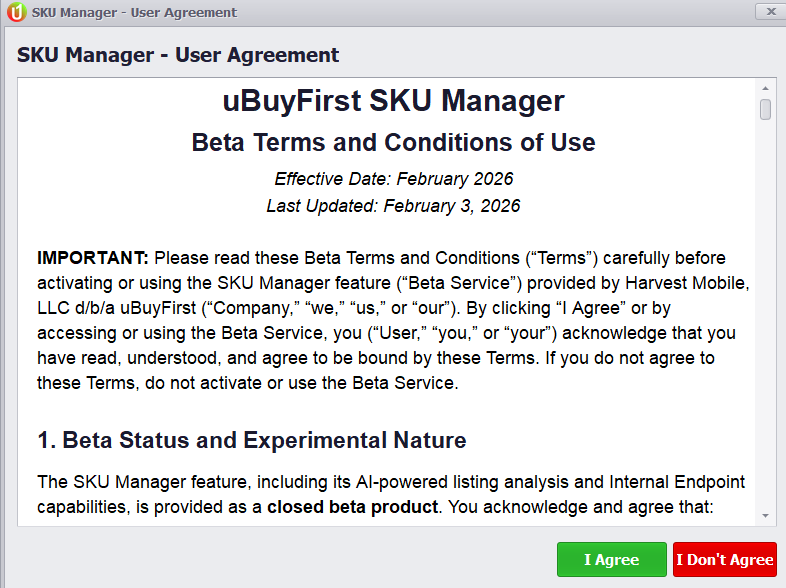
2. Let it configure the server #
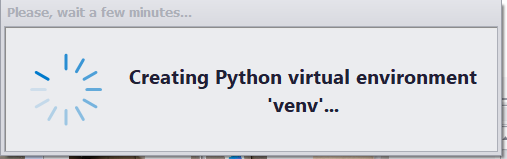
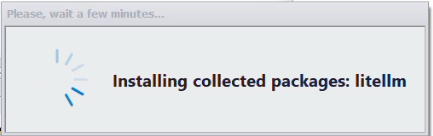
Click Yes on Server Configuration Required. On a fresh install, SKU Manager then builds the Python environment and installs the required libraries automatically — this takes a few minutes and is skipped on a reinstall. Don’t click anything while it runs.
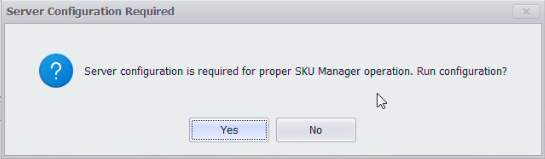
3. The first-run wizard #
On a brand-new setup the window is a step-by-step wizard, not the tabbed window you may have seen in older documentation:
- The Profile Name shows a greyed-out Default that you cannot edit — this is normal, you can’t name a profile yet.
- You move through the steps one at a time with <- Prev Step and Next Step ->. You can’t jump ahead.
- Server Status reads Not Configured.
After you finish, this same window becomes a normal tabbed window with a profile dropdown and New Profile / Copy / Remove buttons. Those are for later edits — you won’t see them yet.
Step 6 — Point It at Your List (Data & Fields) #
1. Load your CSV #
Under CSV Data Source, click Browse… and pick the file from Step 1. The CSV Columns to Use list fills in with your headers.
2. CSV columns to use #
Click Check All.
Tick Every Column.
Any column you leave unticked is invisible to your script. If your price column isn’t ticked, your card shows no prices and no verdict — and nothing warns you. Tick everything; trim later if you want.
3. eBay Standard Listing Fields #
The list is grouped by section (Price & Payment, Shipping & Location, …) with a search box at the top. Total Price arrives ticked, tagged (recommended). Tick two more:
- Title — where your product number is found. Nothing works without this.
- Condition — new / used, for your condition rules.
Leave Send description (under the list) ticked.
4. eBay Category Item Specific Fields #
Leave completely empty.

Click Next Step ->.
Step 7 — Paste Your Matching Script #
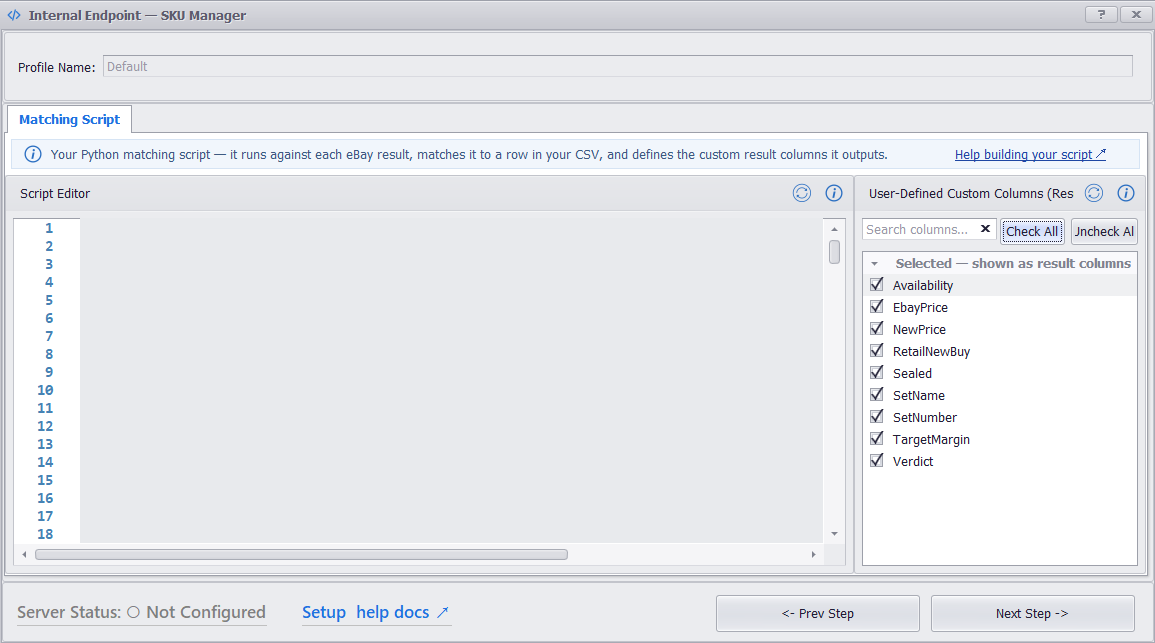
The Script Editor may already contain the app’s own sample script. That is a sample, not yours — you’re about to replace it. If a red box about OUTPUT_COLUMNS appears when you arrive, it only means the script box is empty: click OK.
1. Paste yours #
- Open your saved matching script file.
- Select all (Ctrl+A), copy (Ctrl+C).
- Click into the Script Editor, select all, delete, then paste.
Always Replace the Whole Thing.
Never edit code in the box by hand, even for a one-word change. The box can silently truncate long scripts. Always delete everything and paste the complete script from your file.
Don’t Reload the Sample After Pasting.
The circular-arrow icon beside Script Editor (Reload Matching Script by Data & Fields info) puts the app’s sample script back. Click it after pasting and yours is gone.
2. Register your columns #
On the right is User-Defined Custom Columns (Results). Click the circular-arrow icon at the top of that panel (Auto Detect Custom Columns — it re-reads the columns your script declares in OUTPUT_COLUMNS), then click Check All. The columns appear under Selected — shown as result columns.
Check Every One.
Anything left unticked never reaches your card — including your verdict. Your setup will look finished and your cards will come back empty.
If the List Comes Up Empty.
If detect finds nothing — an empty columns panel, or a red “OUTPUT_COLUMNS is not defined” message — your script is missing its
OUTPUT_COLUMNSline. Go back to the AI and say: “Add an OUTPUT_COLUMNS list at the end naming every column the script outputs.” Re-paste the whole script and detect again.
Click Next Step ->.
Step 8 — Paste Your Display Template #
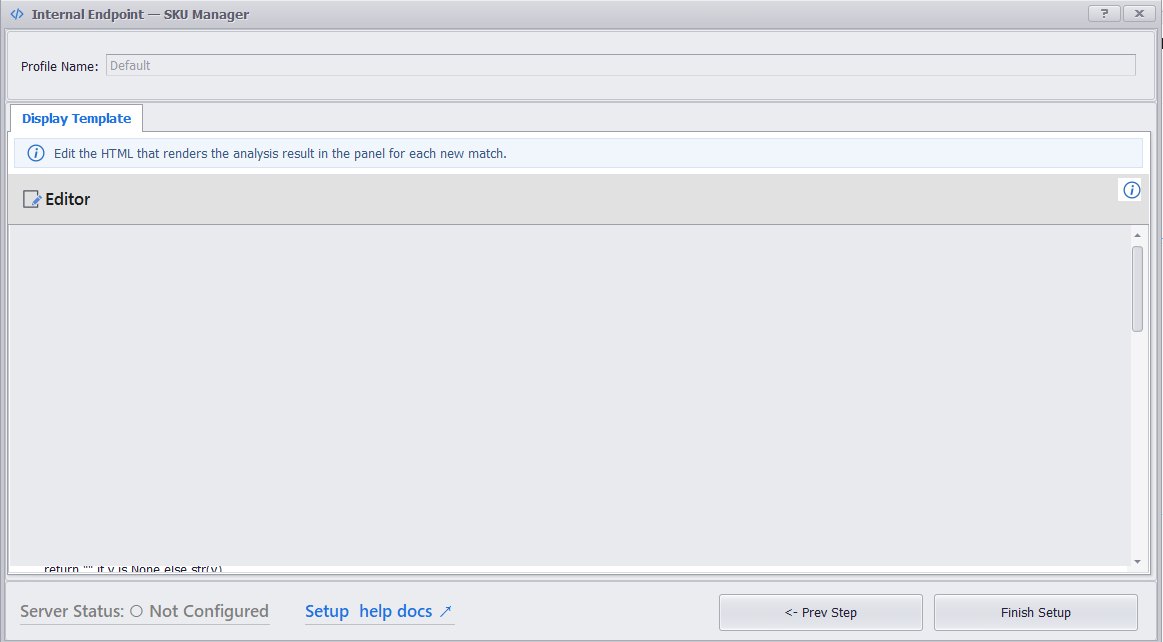
This tab also arrives with the app’s own starter template already in it. Same routine as Step 7: open your display template file, copy all of it, click into the Editor, select all, delete, then paste.
This Tab Looks Different Depending on State.
When the server is stopped you get an Editor — your template text, editable. When it’s running you get a Preview instead. If it says “No Search Data Available”, that’s the preview with nothing to preview yet.
Step 9 — Finish Setup and Start the Server #
Click Finish Setup at the bottom right. The wizard saves your settings and starts the service.
The window changes: a profile dropdown appears with New Profile / Copy Profile / Remove, all three tabs become clickable, a yellow bar says the config is locked while the service is running, and Server Status turns green — Running.

If the Feed Doesn’t Pick Up Your Search, Restart the App.
A search added while the server was already running may return nothing until you restart uBuyFirst. Restart once; both servers start on their own.
Step 10 — Test It on a Real Listing #
1. Show the panels you need #
Go to the View tab → Panels and tick IE Sku Analysis. That’s the panel your cards appear in, and it’s off by default. Check eBay Searches is ticked too — it usually already is.
2. Add a search #
In the eBay Searches panel, add a search using a keyword that matches something on your list. Internal Endpoint has no filter, so the search is what decides which listings get checked.
3. Start the feed #
Click Start — on the Home tab, or in the bottom status bar. Listings begin arriving.
Test with a Popular Product, Not a Rare One.
uBuyFirst shows newly posted listings. A rare item might get listed twice a day — you’ll sit staring at an empty screen and think your setup failed. Pick the most commonly listed thing on your list for the first test. Also: a bare number on its own is noisy. Searching a product number with no category filter will pull in car parts, tools and anything else sharing those digits. Add a keyword, or set a category, once you’re past testing.
4. Click a listing #
Click a result whose title contains a product number from your list. Your card appears in the IE Sku Analysis panel.
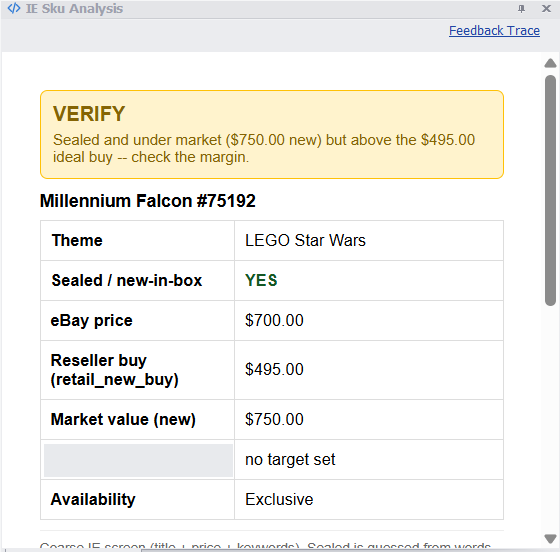
That’s it — You’re Set Up.
From now on, every listing that matches your list gets a card automatically. Internal Endpoint needs no filter — it runs on everything the feed pulls. If you go looking for a filter step, there isn’t one. (AI Analysis is the opposite: it does need one.)
Feedback Traces in IE Mode #
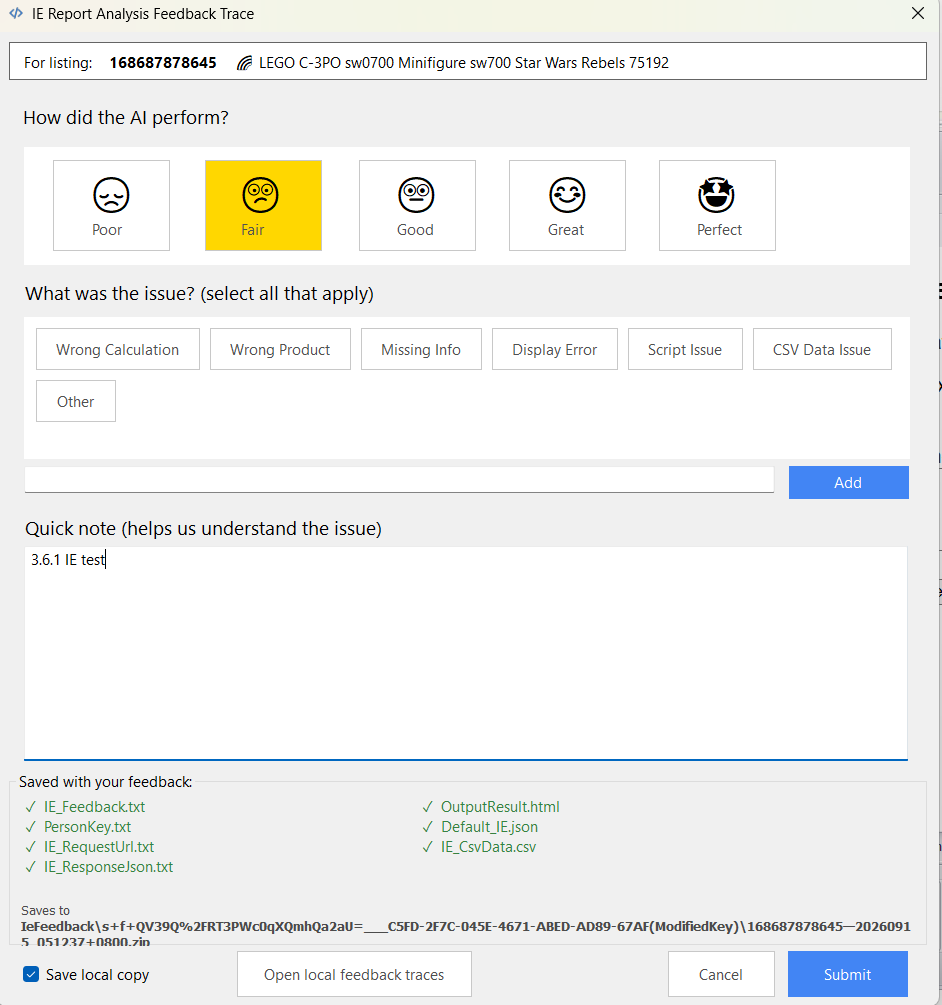
When a card is wrong, the Feedback Trace link at the top right of the IE Sku Analysis panel captures everything behind that result so your AI assistant can fix the script.
- Click Feedback Trace on the panel. The listing is frozen at that moment.
- Rate the result, pick an issue (Wrong Calculation, Wrong Product, Missing Info, Display Error, Script Issue, CSV Data Issue, Other) and write a short note.
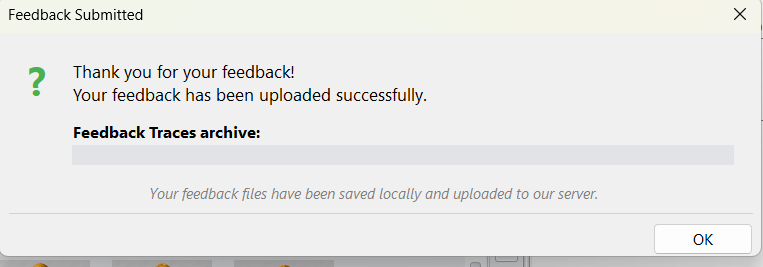
- Check the Saved with your feedback list, then Submit. The confirmation names the zip it was saved to.
Each trace is one zip under C:\Users\USERNAME\AppData\Roaming\uBuyFirst\SkuManagerScripts\IeFeedback\<LicenseKey>\, named after the item number and the submit time, containing IE_Feedback.txt, IE_RequestUrl.txt, IE_ResponseJson.txt, OutputResult.html, <Profile>_IE.json (your matching script and display template), IE_CsvData.csv (your whole list) and PersonKey.txt. Unzip it and drop the files into your AI project with a note on what was wrong.
Changing Your Setup Later #
Once the server is running, the whole window is read-only. Buttons are greyed and checkboxes won’t tick. The app says so at the top: “Config is locked while the service is running.” That’s not a fault.
The full sequence, every time:
- Data tab → IE Python code → IE Settings.
- Click Stop Service [Edit Configuration] — everything unlocks.
- Make your change. If you’re touching a script, select all, delete, and paste the whole thing from your file.
- If your
OUTPUT_COLUMNSchanged, click Auto Detect Custom Columns on the columns panel again and re-check the columns. - Click Start Service [Save Configuration]. That button is also the save — there is no separate save button.
- Close the window. If results don’t change, restart the app.
Profile Surgery Wipes Your Scripts.
Removing or recreating a profile clears the pasted scripts. If you do that, re-paste both from your files afterwards.
When Something Doesn’t Work #
Every listing says “No Matches Found” #
Including listings you can see are on your list. Nothing in the error log. Errors: 0. Work through these in order:
- Restart the whole application. Thirty seconds, and it is genuinely the most common fix. Do this before anything else.
- Is Title ticked under eBay Standard Listing Fields?
- Are your CSV columns all ticked?
- Fix the script. Go back to your AI conversation and say: “This script matches nothing and produces no error. Please rewrite it using the Adaptive Field Resolver from the reference file instead of hardcoded field names, and add a fallback row that explains why nothing matched.” Paste the new script in (select all, delete, paste), re-detect columns, Check All, Start Service, restart the app.
Every listing says “check this” and never buy or pass #
Usually correct behaviour: those rows on your list have no price to compare against. Check your CSV for blank price cells. If lots are blank, the setup is working — your data has gaps.
The card shows the product but no prices #
Output columns aren’t all ticked, or CSV columns aren’t all ticked. Stop the service, Check All in both places, save, restart the app.
“SyntaxError: invalid syntax” at a negative line number #
Not your script. This happens when an item specific whose name contains / or : is selected — the app builds an invalid parameter for it. Go back to Data & Fields and clear the eBay Category Item Specific Fields panel. A negative line number always means this, never your own code.
An “Error Report” window appears mentioning a connection #
If it mentions SocketException or a connection being closed, that’s the eBay feed dropping its network connection — nothing to do with your script. Close it.
My results stopped updating after I changed something #
Results already on screen were produced under the old settings and don’t re-run. Clear results and let fresh listings arrive.
New listings stopped arriving after I stopped a server #
Stopping the IE or AI server can stop the feed reaching the grid until the app is restarted. Restart the app.
Support #
- Live Support: available at uBuyFirst.com
- Email: su*****@*******st.com


