
You can use Telegram to push results found in uBuyFirst to your mobile device.
In the uBuyAssist web app, Notify sends alerts on Telegram and four more channels.
Sign Up for Telegram on your mobile device. #
- Signup requires an email, phone number and device with internet connection.
Set Telegram UserName #
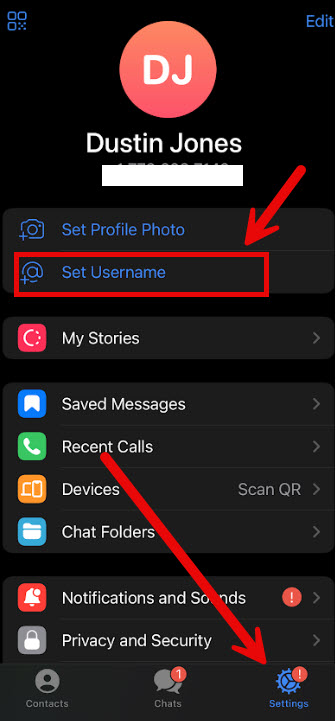
- Click on Settings > Set Username
- Enter in unique User ID and click DONE
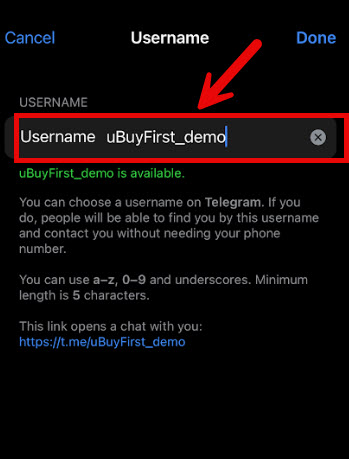
- Remember username, you will need to input into uBuyFirst later.
Create HTTP API Token #
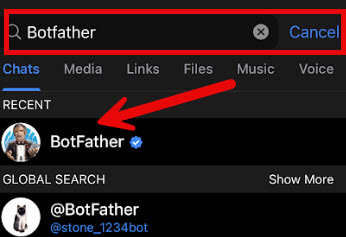
- Search for “BotFather” in Telegram and click
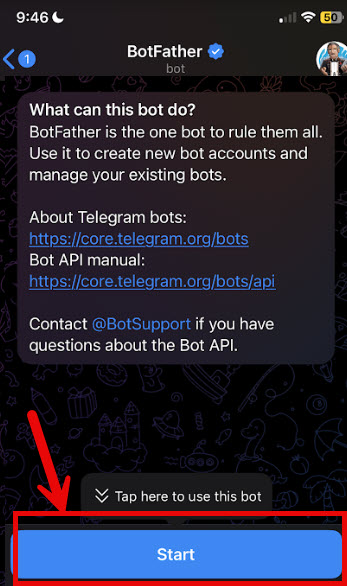
- Click “Start”
- Send command /newbot and send message
- Choose a name for your bot
- Choose a username for your bot
- Copy the HTTP API token (you will need to input into uBuyFirst)
Setup Telegram in uBuyFirst #
- Go to Options > Telegram and the settings window will open
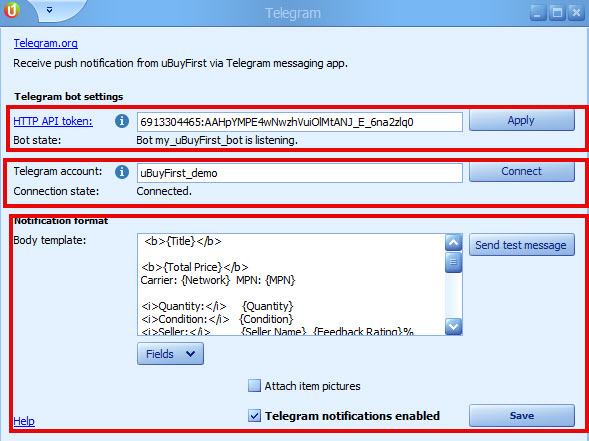
- Enter in HTTP Token > Click Apply > Status will update “listening”
- Enter in Telegram account name
Configure Notification Format #
- In the “Notification Format” > Body Template area will be where you can configure the info you want sent from a listing to Telegram.
- Click “Fields” to see list of all available fields.
- Send Test Message to check the format.
- Enable/Disable pictures
- Enabled Telegram Notifications
- Click Save
Listing in Telegram #
Listing will be displayed according to the template format you setup.
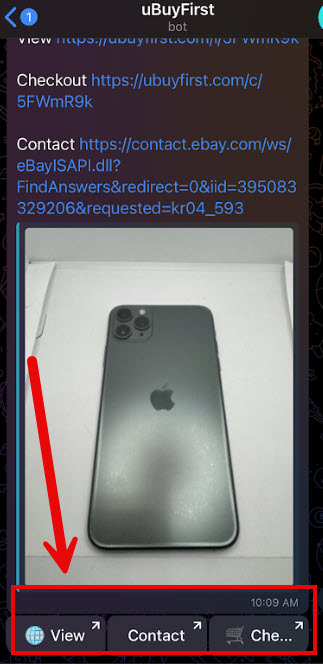
- View > View listing on eBay
- Contact > Contact Seller link
- Checkout > To go directly to checkout page to buy item.
11/01/2024 – Version 2.0.0.245 #
Enhancements #
- Telegram
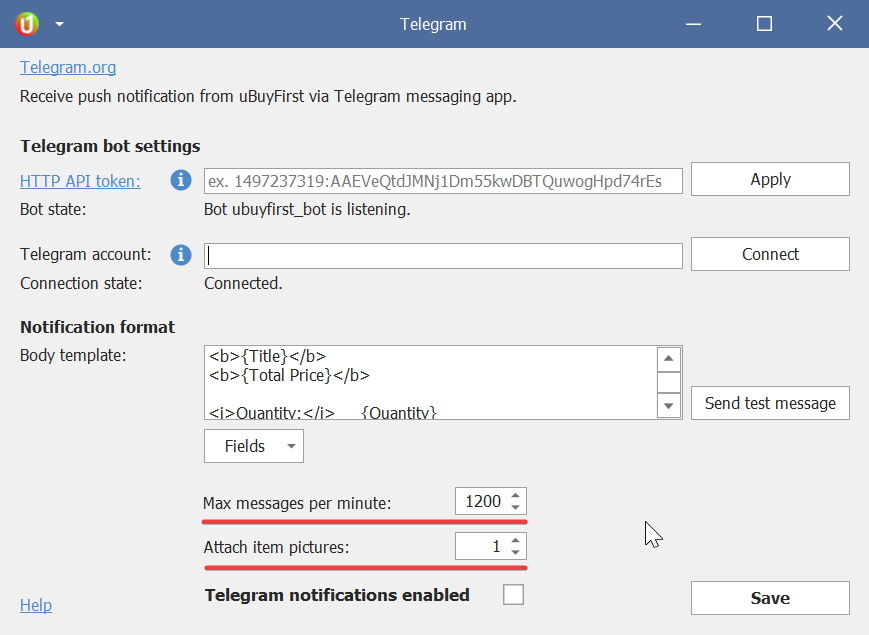
- Set max messages per minute
- Set number of pictures to be sent


Hi, I’m having a persistent connection problem with the uBuyFirst desktop application (v3.4.9.0) on Windows 11.
The application launches and installs successfully, and I have already completely uninstalled and reinstalled it. I also installed the required .NET Desktop Runtime.
The exact application error is:
System.Net.Sockets.SocketException
An existing connection was forcibly closed by the remote host.
I have tested the network connection extensively:
The PC is connected directly through Ethernet/LAN.
Normal internet access works without any problems.
ping google.com → 0% packet loss, ~36 ms average.
nslookup ubuyfirst.com successfully resolves to 104.199.127.254.
Test-NetConnection ubuyfirst.com -Port 443 → TcpTestSucceeded: True.
Test-NetConnection 104.199.127.254 -Port 443 → TcpTestSucceeded: True.
curl.exe -v https://ubuyfirst.com/ –max-time 15 successfully establishes the HTTPS connection and finishes with Connection #0 to host ubuyfirst.com:443 left intact.
The uBuyFirst website and Help Docs also work normally in Chrome.
eBay itself works normally in Chrome.
I also previously checked Windows Defender Firewall/Allowed Apps, and the issue persisted. I had 360 Total Security installed previously, but I have now removed it completely and tested the application again. The same SocketException still occurs.
Therefore, the basic LAN connection, DNS resolution, TCP port 443 connectivity, HTTPS connectivity, .NET runtime, and installation have all been verified.
It appears that the problem is specifically occurring inside the uBuyFirst desktop application’s connection/API layer after the initial HTTPS connection is established, or potentially with the specific endpoint/protocol the desktop application uses.
Could you please check the server-side logs for my connection and tell me which uBuyFirst endpoint/API the desktop application is attempting to connect to when this SocketException occurs, and whether my IP/account is being reset or rejected?
I can provide the full error report/config if needed.