
The grid is where you live; views are how you slice it
Table of Contents #
The Orders Grid #
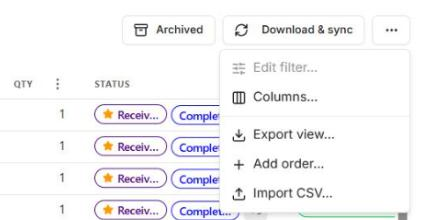
Orders (left nav) shows every synced order in a grid. Above the grid: Download & sync (pull latest orders) and the … menu with the grid’s tools:
- Edit filter… — the current view’s filter conditions (the field list includes Carrier and Shipped under From eBay, plus eBay item-not-received case and eBay case awaits your reply)
- Columns… — pick which columns this view shows. Shipped (when eBay says the order shipped) is off by default; once on, it sorts, and orders that have not shipped stay at the bottom
- Export view… — export what you’re looking at (see Exporting & Your Data)
- Add order… / Import CSV — bring in orders manually
Find any order with the search bar at the top: order number, item number, seller, tracking number, carrier or ZIP. Several words narrow it down: each word has to match somewhere in the order, so cable 9400 finds the cable whose tracking number has 9400 in it. To search one field only, start with its name and a colon, for example zip:330, carrier:usps or seller:; title: and city: take a whole phrase, every other prefix one word. The ? next to the box lists them all.
Click an order to open its page. To keep the grid where it is, open the order in a new tab instead: middle-click the row, Ctrl-click it (Cmd-click on a Mac), or right-click → Open in new tab.
The Order Page #
The order page puts everything about one purchase on one screen. The header stays at the top while you scroll: the item picture (click it for a larger preview), the title, the price and the seller. Opened from a list, the header also shows your place in it (for example 6 of 16) with ‹ › to step to the previous or next order without going back.
Order overview comes first: the item, order and PSM numbers, the Pipeline (Paid · Shipped · Delivered · Received · Inspected · Feedback · Done), Needs you (what is still open on this order, such as feedback not left or the item not received) and Yours ★ (your own status dimensions; click a value to set it, +N more opens the rest).
Everything you can do to the order sits in one Actions ▾ menu:
- View on eBay (the listing) and Order on eBay (eBay’s order details; manual orders don’t have it, since eBay has no page for them)
- Receive in… and Mark received (skip inspection)
- Leave feedback…, Message seller…, Add note…
- Set status, Add tag
- Start return on eBay (not as described, or changed my mind where the seller takes returns) and Open INR / Money-Back-Guarantee claim on eBay, when they apply
- Archive
Below the overview, the sections: Receiving & triage (the check-in record, your custom fields, and photos: Attach photo adds up to 20 per order here, the same place the receiving desk puts them; removing one is still done at the desk), Shipping & tracking (the tracking number is a link: the carrier’s tracking page for USPS, UPS, FedEx and DHL, eBay’s order details for any other carrier), Non-receipt (the item-not-received claim window and, once you have opened a request on eBay, an eBay case line saying who it waits on or how it ended; from then on PSM shows no claim warning or countdown for that order; the optional Case & dispute section, off by default under Page layout, shows the same eBay case), Payment & refunds (if eBay cancelled the order it says so with the date, and History records it), Seller, Returns, Notes (each note has Edit and Delete; an edited note shows · edited, and History records the change), Messages (the live thread with the seller) and History (every event on the order, newest first).
Page layout (the icon next to Actions) is yours: Columns 2, 3 or 4, each section on or off and in the order you want, Reset to default to go back. You can also drag a section by its grip, at its top left, to move it on the page.
Filter from the Column Headers #
For a quick narrow-down you don’t need a view. Column headers carry a filter icon: click it, type or pick, Apply.
- Text columns (Item, Ships from, and so on) match anything that contains what you type.
- ZIP matches what the ship-from ZIP begins with, so
330finds 33012 and eBay’s partial 330**, not 13301. - Marketplace and Status are pick lists; Buy date, Shipped and Delivered take a date range; Amounts takes a price range on the item price only.
Column filters are temporary: Clear column filters (n) above the grid drops them, and they are gone when you leave the page. On one of your own views, Save to <view> keeps them as part of the view. An export of the view includes them.
What a View Is #
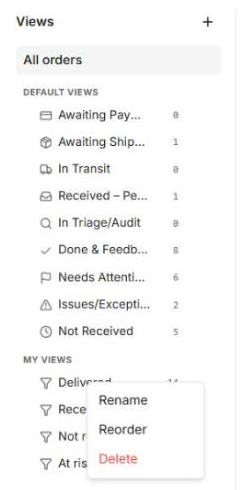
A view = a saved filter + its own column set. The left sidebar lists All orders, the built-in Default views (Awaiting Payment, Shipped, Not Received and so on), and My views. Not Received lists delivered orders that are not checked in yet, the ones to look for at the receiving desk. Claims Closing Soon lists orders not received and not refunded whose item-not-received claim window closes within 5 days; they also show in Needs attention as “Claim on eBay before <date>”, and Home counts them under Claims closing soon. Orders that already have an eBay case are left out.
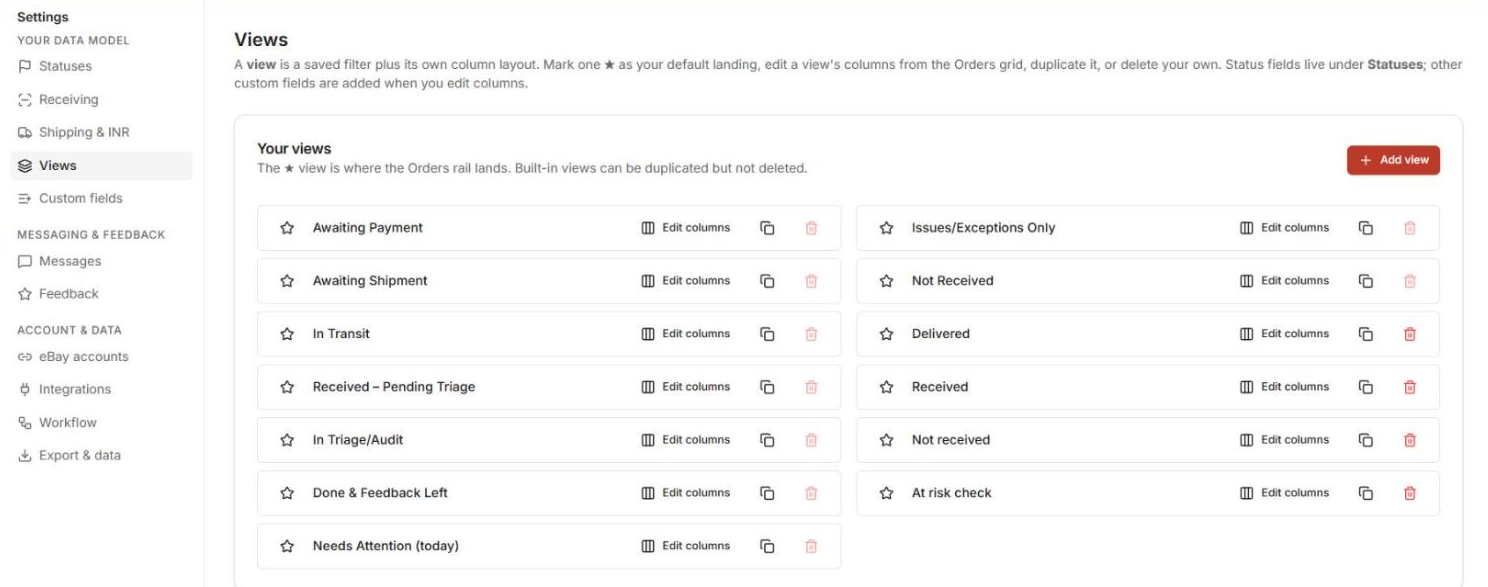
- The ★ marks your default landing view — the one PSM opens on.
- Built-in views can be duplicated but not deleted — duplicate one and adjust the copy.
- Right-click a view in the sidebar for Rename / Reorder, plus Delete on your own views.
Managing Views #
Settings → Views is the full management surface: set the ★ default, Edit columns, duplicate, delete (your own views), and Add view. To rename a view, right-click it in the sidebar.
Known Quirk.
Creating a brand-new filter from the sidebar (“New filter” / “Save view”) is being reworked and can behave unpredictably right now. The reliable path today: duplicate an existing view, then adjust its filter via the grid’s … → Edit filter and its columns via Edit columns.
Next: as items arrive: Receiving Items.


